 Areca Docs
Step 1: Create the client and the site
In the CMS, create a client and a site for the bakery, then save the site token that your website project needs.
In this step you tell Areca about the bakery. You create a client (the business) and a site (its website). The site gives you a site token. Your website uses the token as a password to read published content.
Why the token matters
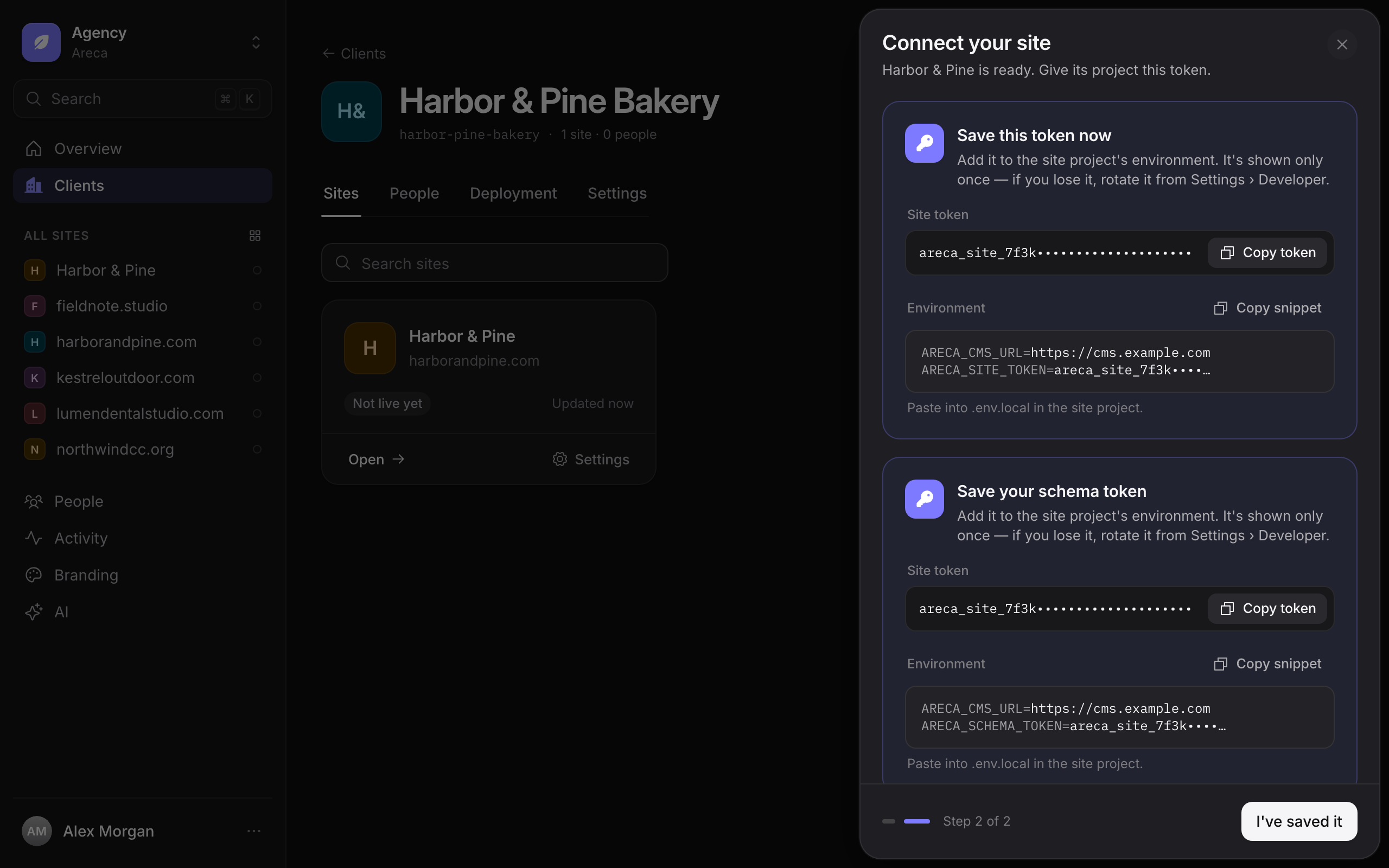
The site token is shown once. Save it now. You will paste it into your project in step 2.
Sign in to the CMS as an agency admin. Enter the code from your authenticator app when the CMS asks for it.
Open the Agency workspace. Use the workspace switcher at the top of the sidebar, then open Clients.
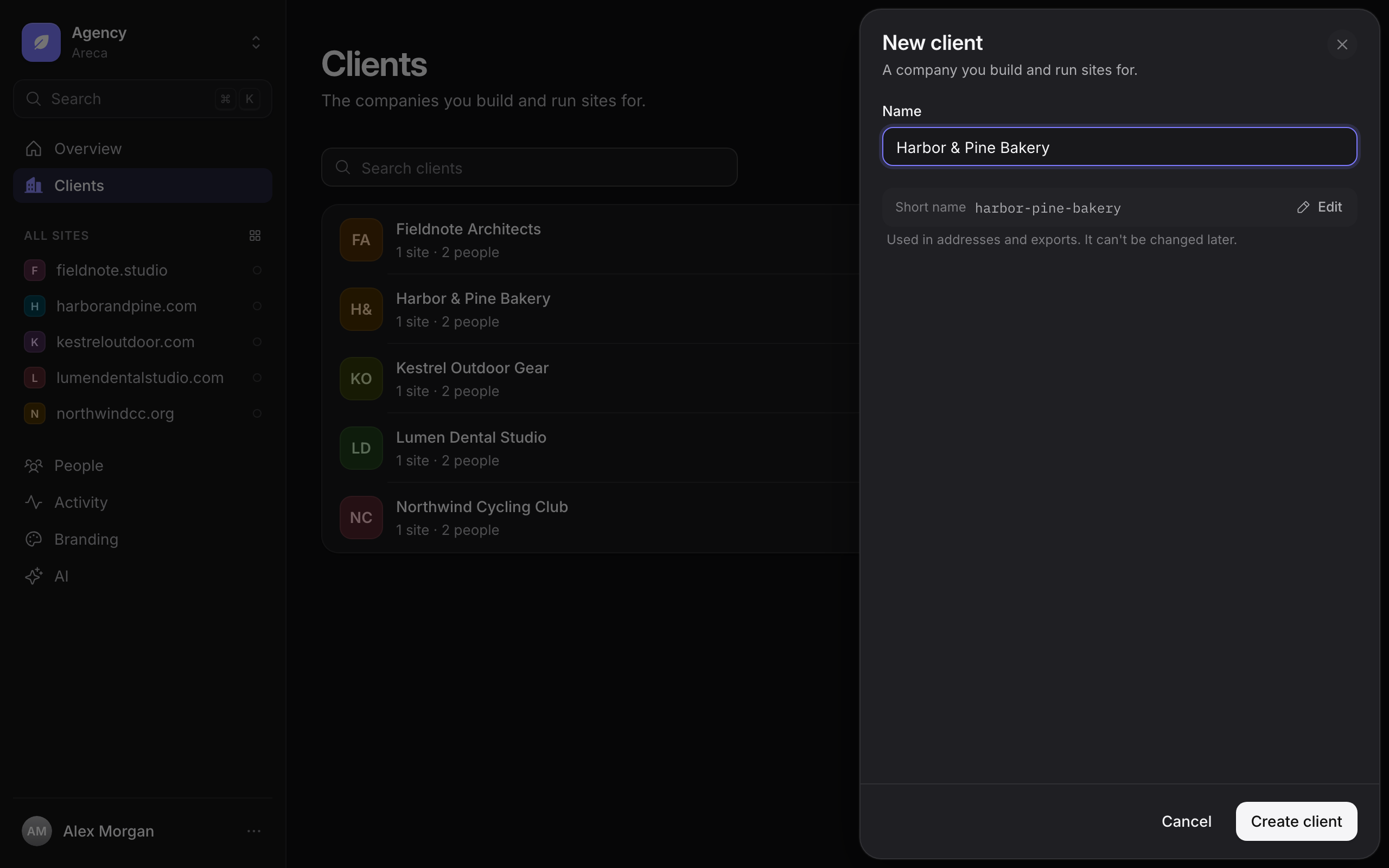
Create the client. Select New client. In Name, type Harbor & Pine Bakery. Select Create client.
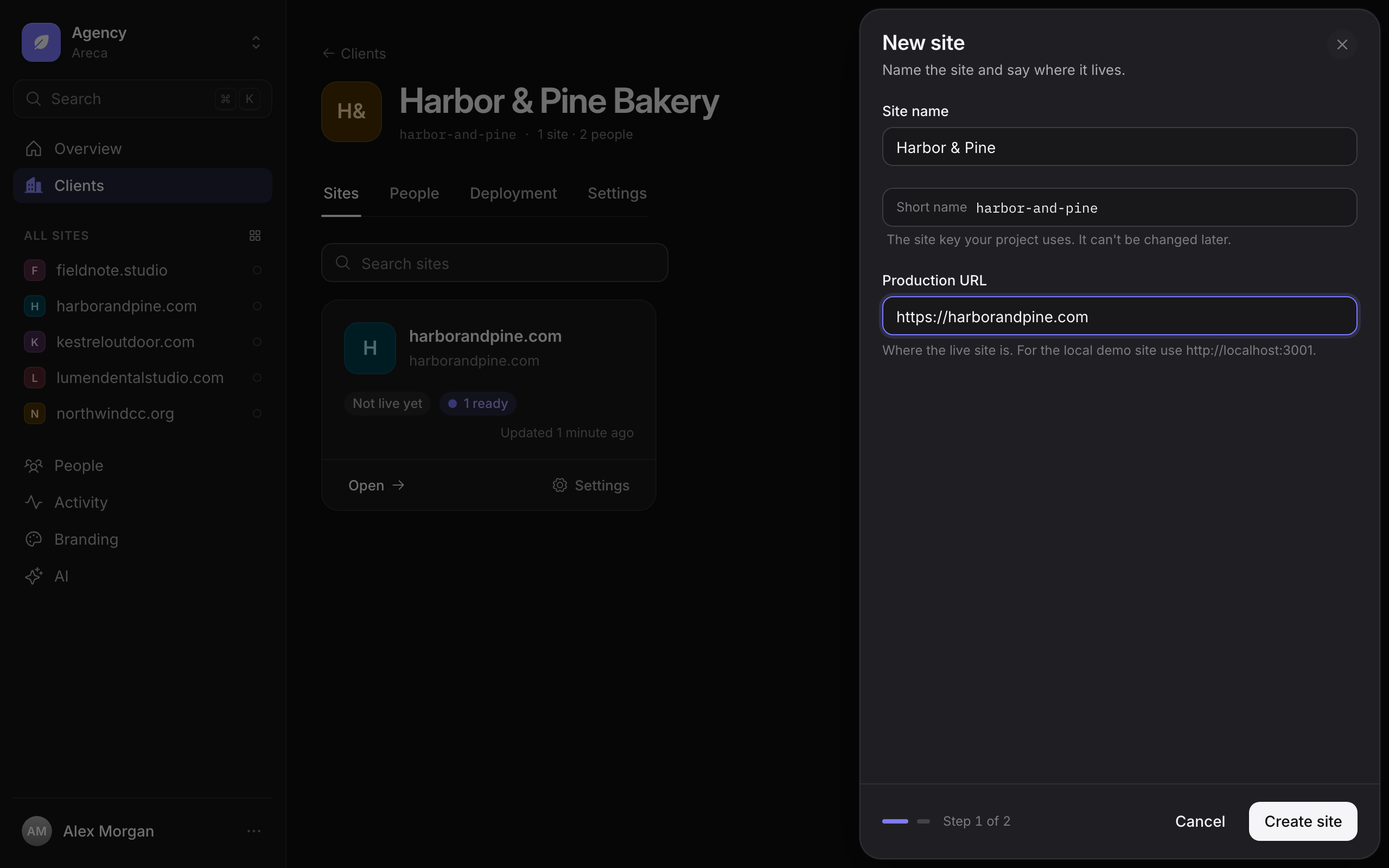
Start a new site. On the client page, open the Sites tab and select New site. In the first step, fill in these values:
- Site name:
Harbor & Pine Bakery - Short name:
harbor-and-pine. This is the site key. Your project uses it to find the site. Areca suggests a short name from the site name. If it suggests something else, use that value everywhere in this guide instead. - Production URL:
https://harborandpine.com
Select Create site.
Copy the token. The second step of the sheet shows the site token and a ready-made snippet of environment variables. Copy the token and keep it in a safe place. Then select I've saved it.
Find the token later
If you lose the token, you cannot see it again. Open the site's Settings, then the Developer tab. Here you see the site key, the Site token section and the Schema-write token section.
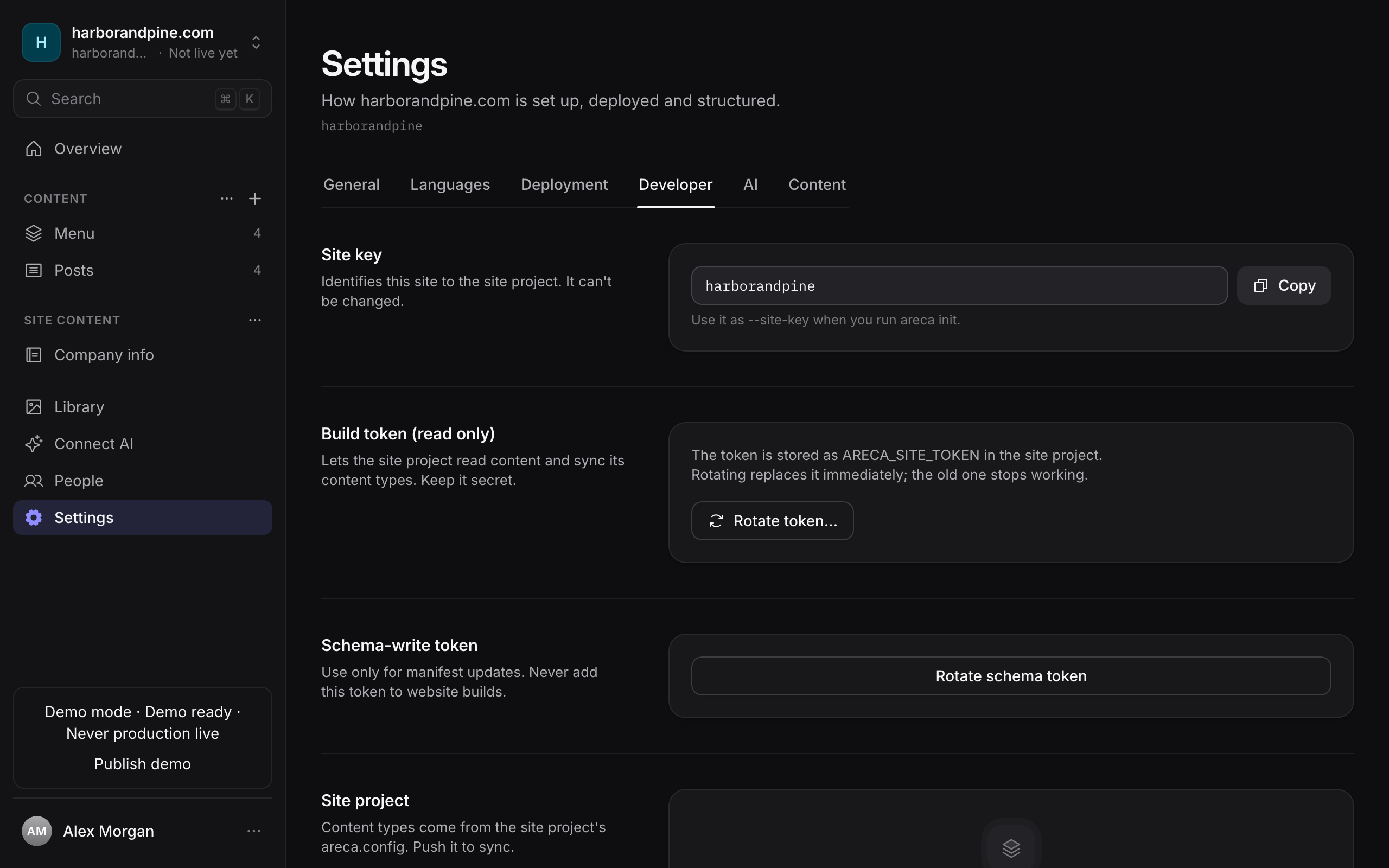
To get a new site token, select Rotate token… on the Developer tab. The old token stops working straight away.
You should now see the Harbor & Pine Bakery client page, with one site in its Sites tab and no reminder card about an unconfirmed site.
If something went wrong
- You do not see New client or New site. Only agency admins can create them. Ask an admin to create the client and site for you, then send them the site token through a safe channel.
- The sheet asks for a code. Creating a site and rotating a token ask for a fresh authenticator code. Enter it, and try again.
- The short name is rejected. Use lowercase letters, numbers and hyphens only, such as
harbor-and-pine.
Developer setup with Areca skills
Prepare a client and site, install the four Areca skills, connect your agent, and finish the website setup.
Step 2: Start the project and install the SDK
Create a TanStack Start website project, install the Areca site SDK, and run areca init to connect the project to the bakery site.