 Areca Docs
Step 5: Write posts and go live
Write two posts for the bakery in the CMS, mark them ready, and go live so the release is ready for your website to read.
Now the editors' part. You write two posts in the CMS, approve them, and publish them.
Know the three states
Every post has a status. Read this table once. It explains the words you will see.
| Status | What it means | Is it public? |
|---|---|---|
| Draft | The latest saved version. Only the CMS shows it. | No |
| Ready | An owner approved this version. It goes live with the next Go live. | Not yet |
| Live | This version is on the website now. | Yes |
Saving a draft never changes the website. Only Go live does.
5.1 Write the first post
Open Posts. In the site's sidebar, select Posts, then select New entry.
Fill in the title. Type Our sourdough starter turns ten. Check the Slug field. It should read our-sourdough-starter. The slug becomes the web address.
Write the excerpt. Type one or two sentences, for example: Ten years ago we fed a jar of flour and water for the first time. Here is what it has taught us.
Add a cover image. Select Choose an image in Cover image. Pick a picture from the Library, or upload one. Give the picture a description. Editors must describe pictures, because the description is the alt text that screen readers use.
Write the body. In the Body field, write two or three paragraphs. Add a heading and a short bulleted list, so you can see how formatting appears on the website.
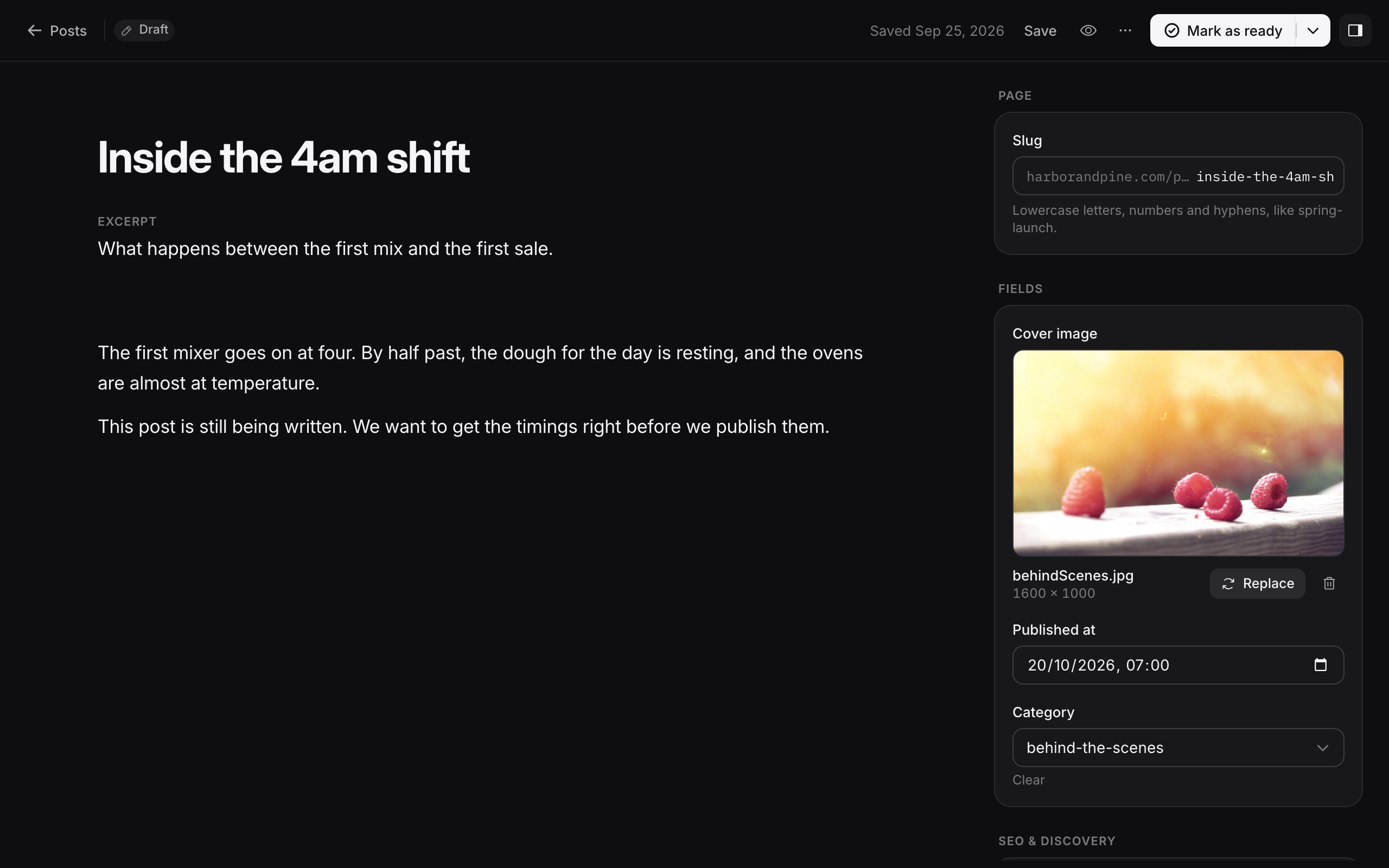
The editor saves your changes as you type. The status stays Draft.
5.2 Write a second post
Repeat 5.1 with a second post. For example, the title Three loaves for the weekend market, with its own excerpt, picture and body. Two posts are enough to see a list on your website.
5.3 Mark both posts ready
Open the first post and select Mark as ready. Then do the same for the second post.
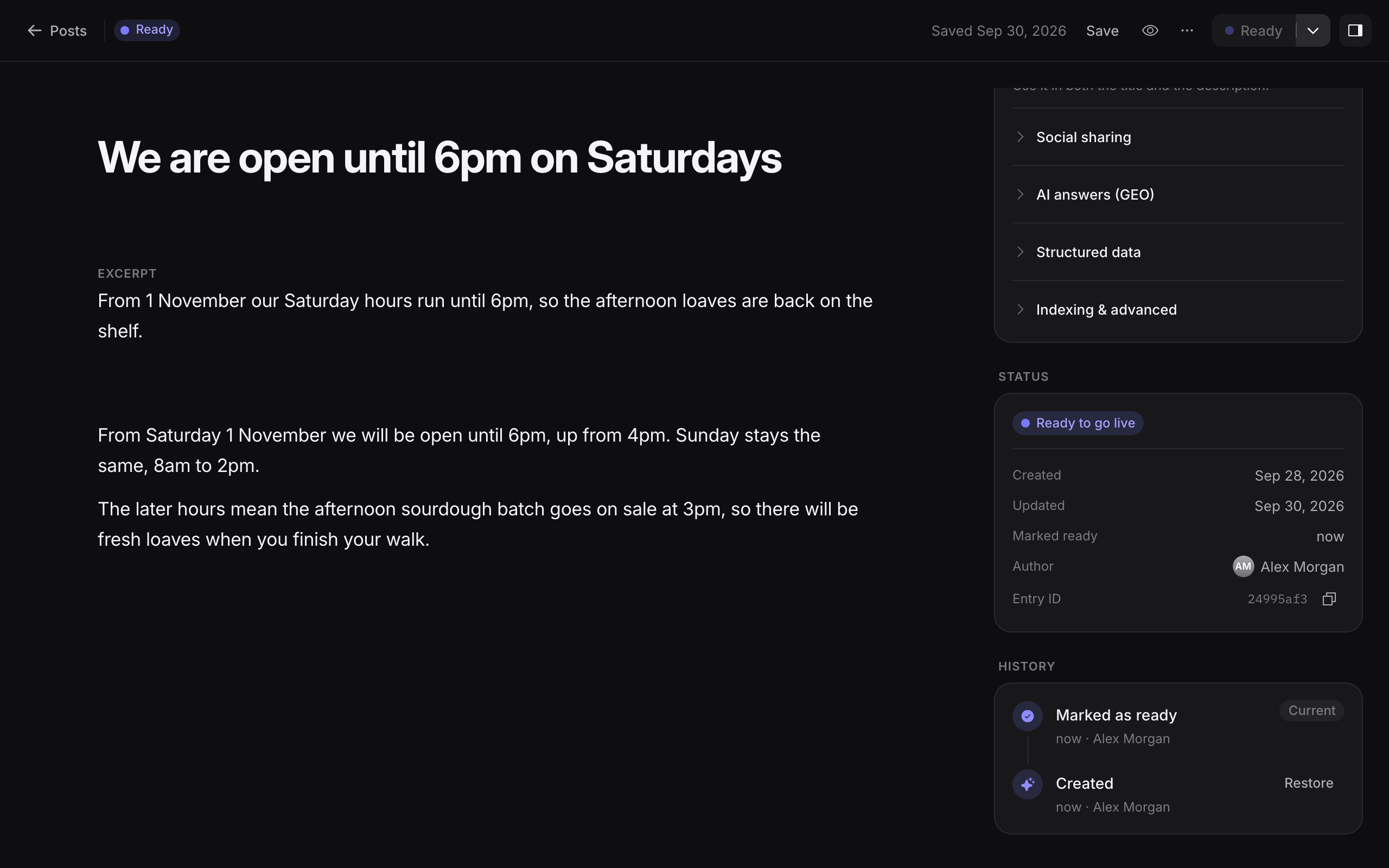
Areca checks the required fields first. If a required field is empty, the post stays a draft and the editor says what is missing.
5.4 Go live
Open Go live from the site's sidebar. Under What's changing you should see both posts. Select Go live, then wait until the release shows as finished.
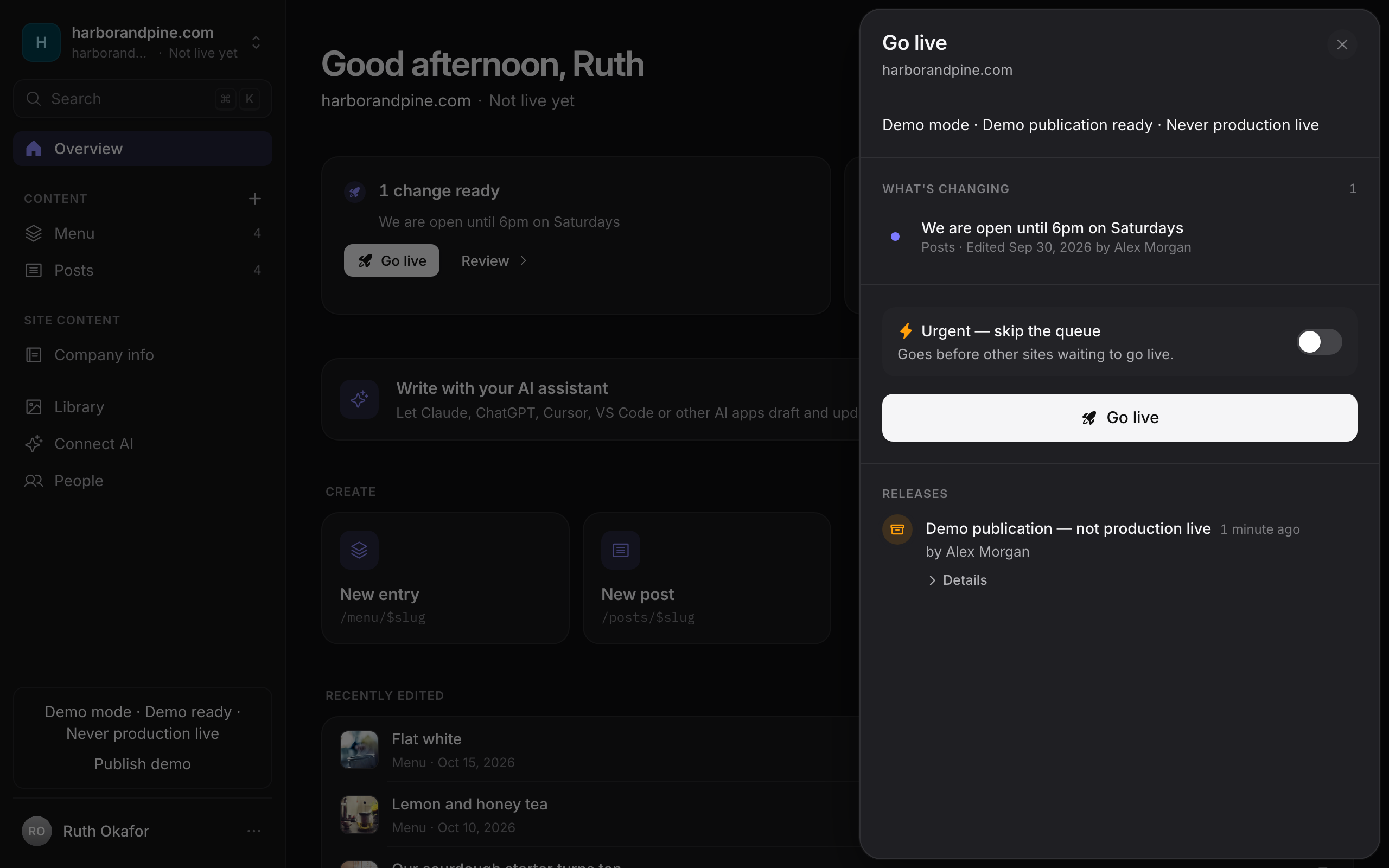
You should now see both posts marked Live in the Posts list. Your website can now read them.
If something went wrong
- Mark as ready is greyed out. You are an editor, not an owner. Ask an owner to mark the posts ready, or ask an admin to give you the owner role.
- Go live is blocked. The site may be in Production mode without a deployment set up. Ask your agency admin to finish the deployment settings, or ask them to switch the site to Demo mode for practice. In Demo mode a release is recorded but not deployed.
- A post is missing from What's changing. It was not marked ready. Mark it ready, then check the list again.
Step 4: Send the content plan to the CMS
Add the schema-write token, run the manifest push and see the Posts collection appear in the Areca CMS.
Step 6: Pull the content and generate types
Download the published posts into your project with areca pull, and see the generated types that give your editor autocomplete.