 Areca Docs
AI settings
Connect OpenRouter, choose the model, write the agency-wide AI instructions, and understand who can use AI suggestions and how often.
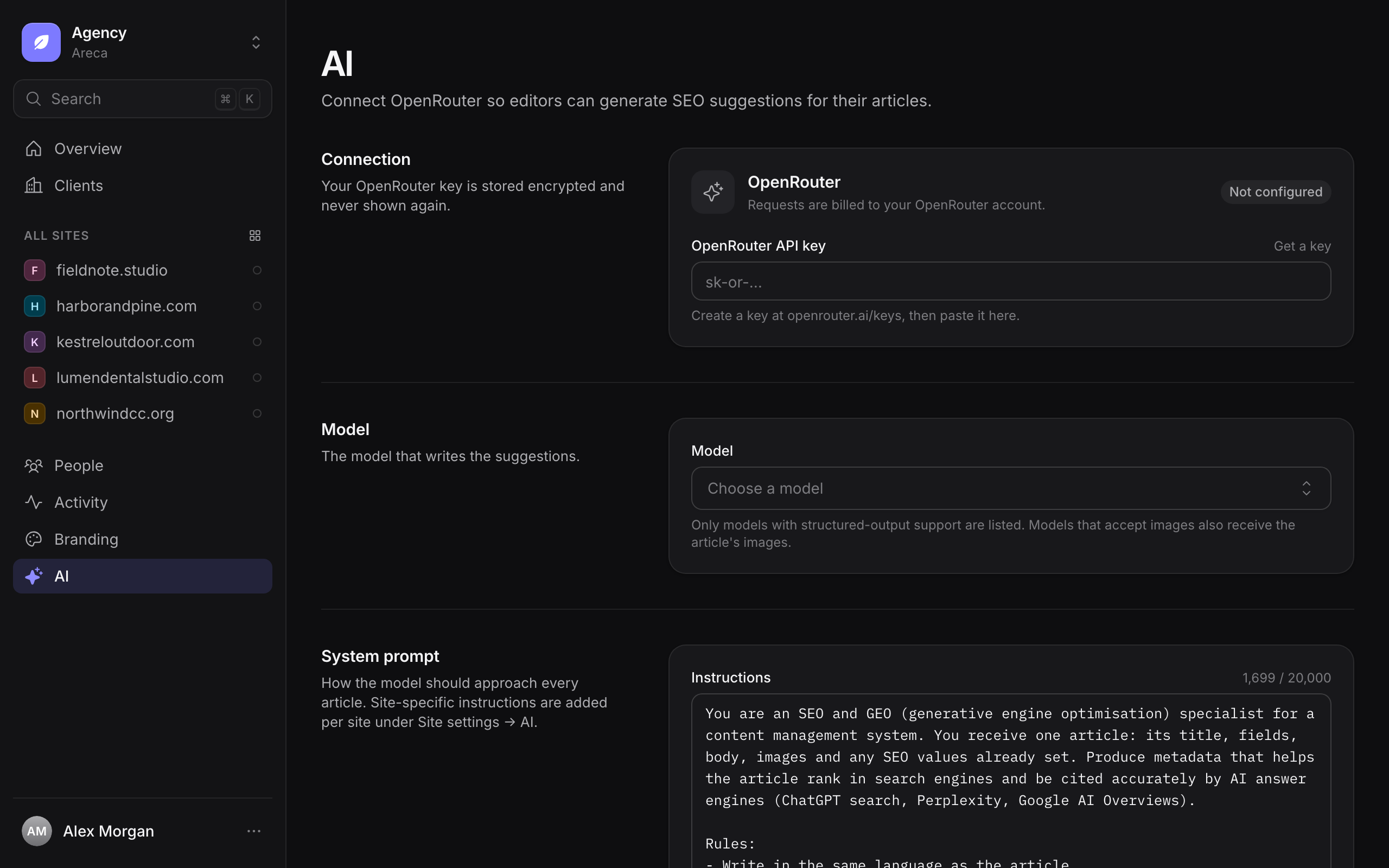
AI settings let editors generate SEO suggestions for their articles. Agency admins connect an OpenRouter account, choose a model, and write the instructions the model follows. Editors then select Generate with AI in an entry's SEO panel and review the result before anything is applied.
AI never publishes content. Suggestions are only applied when an editor accepts them, and they follow the same review and approval steps as manual edits.
This page sets up the SEO and alt-text suggestions inside the CMS. It does not connect an AI app to your site. To let Claude, Cursor or another AI app read and write content, see Connect AI.
Only agency admins can open the AI settings. Find them under Agency › AI. For what is sent to the provider and how it is handled, see AI data handling.
Before you start
- You need an OpenRouter account. Create an API key at
openrouter.ai/keys. - The installation must have an encryption key set by its operator. Areca uses it to store your OpenRouter key safely. If it is missing, the page shows Encryption key missing and won't save a key. Ask your operator to set
AI_SETTINGS_ENCRYPTION_KEY, as described in configuration.
Connect OpenRouter
Get a key. Select Get a key on the page, or go to openrouter.ai/keys and create one.
Paste the key. Enter it in the OpenRouter API key field and select Save.
Choose a model. The Model section lists the models you can use. Select one, then save again.
Areca stores the key encrypted and never shows it again. The page then shows Key saved. To replace the key, enter a new one. To stop all AI suggestions, select Remove key. Everyone stops receiving suggestions until a new key is saved.
Requests are billed to your OpenRouter account, not to Areca.
Choose the model
The model writes every suggestion, so choose one that suits your content and budget.
- Only models that support structured output are listed. Areca needs that to read suggestions field by field.
- Models that accept images also receive the article's images.
- Each model shows its price per million input and output tokens, and its context size.
- If the model you want isn't in the list, type its ID and select Use "…". Areca uses it as you type it.
Choose a model before you save. Areca won't save the AI settings without one.
Write the instructions
The System prompt is the agency-wide instructions the model follows for every article. It can be up to 20,000 characters, and the page shows how many you've used.
Use it to set the general approach: the goal of the metadata, the language to write in, and the rules to follow, such as not inventing facts. Select Reset to default to return to Areca's built-in instructions.
The response is always returned in a fixed structure that the editor reads field by field. You can change the instructions, but not that structure.
For instructions that apply to one site only, such as its brand voice or terms, use the AI tab in that site's settings. See site settings.
Who can use AI suggestions
- Agency admins set up the connection, model and system prompt.
- Editors and owners who can edit an entry can select Generate with AI in its SEO panel, once a key is saved.
Editors review each suggestion before they apply it. See SEO and AI.
Limits
Each person can generate 30 suggestions per hour. When someone reaches the limit, Areca shows a message asking them to try again later. The limit applies to each person, not to the agency or the site.
Your OpenRouter account may have its own limits and credits. If a request fails, check the model's availability and your credits on OpenRouter.
Related
- SEO and AI: how editors use suggestions.
- AI data handling: what is sent to the provider.
- Rate limits: how Areca limits requests.
- Site settings: the per-site AI instructions.