 Areca Docs
Finding your way around
Sign in, switch between sites, use the sidebar and content lists, search, and work from a phone.
This page shows you where things are in the CMS: how to sign in, how to move between sites, how a content list works, and how to find things quickly. Once you know the layout, the rest of the guide is easy to follow.
Sign in
Open the sign-in address your agency gave you. Enter your work email and password, then select Sign in. Some agencies also let you sign in with a provider such as Google, GitHub, Microsoft or Discord. In that case you see a Continue with button for each provider.
If two-factor authentication is on for your account, the sign-in asks for an Authentication code. Enter the six-digit code from your authenticator app. If you do not have your phone, select Use a backup code and enter one of the backup codes you saved. Each backup code works once.
If you were invited, open the link from the invitation email. It is valid for seven days. If it no longer works, ask the person who invited you for a new one.
To turn on two-factor authentication for your own account, see Account and security.
The workspace switcher
At the top of the sidebar you see the name of the site you are working on, with its address and whether it is live. Select it to open Switch workspace.
The list shows your Recent sites first, followed by all Sites you can open. Type in Search sites… to find one by its name or slug. A client member can open every site that belongs to the client.
The sidebar
The sidebar lists the parts of the site you can use:
- Overview shows what needs your attention, shortcuts to create entries and recent edits.
- Content lists each content type, such as Articles, with its number of entries. Select one to open its list.
- Library holds the images and PDFs shared by the whole client. See Library.
- People appears to owners and agency admins. Settings appears only to agency admins.
The Go live box at the bottom of the sidebar shows the state of the live site. It says whether the site is up to date, has changes ready, is going live, or whether the last release failed. Select it to open the Go live panel. See Going live.
Agency admins also see an Agency section with Overview, Clients, People, Activity, Branding and AI.
Select Collapse sidebar to make more room for the content. Select Expand sidebar to open it again.
The content list
Select a content type in the sidebar to open its list. The list shows every entry of that type, with its status, when it was last edited and who edited it.
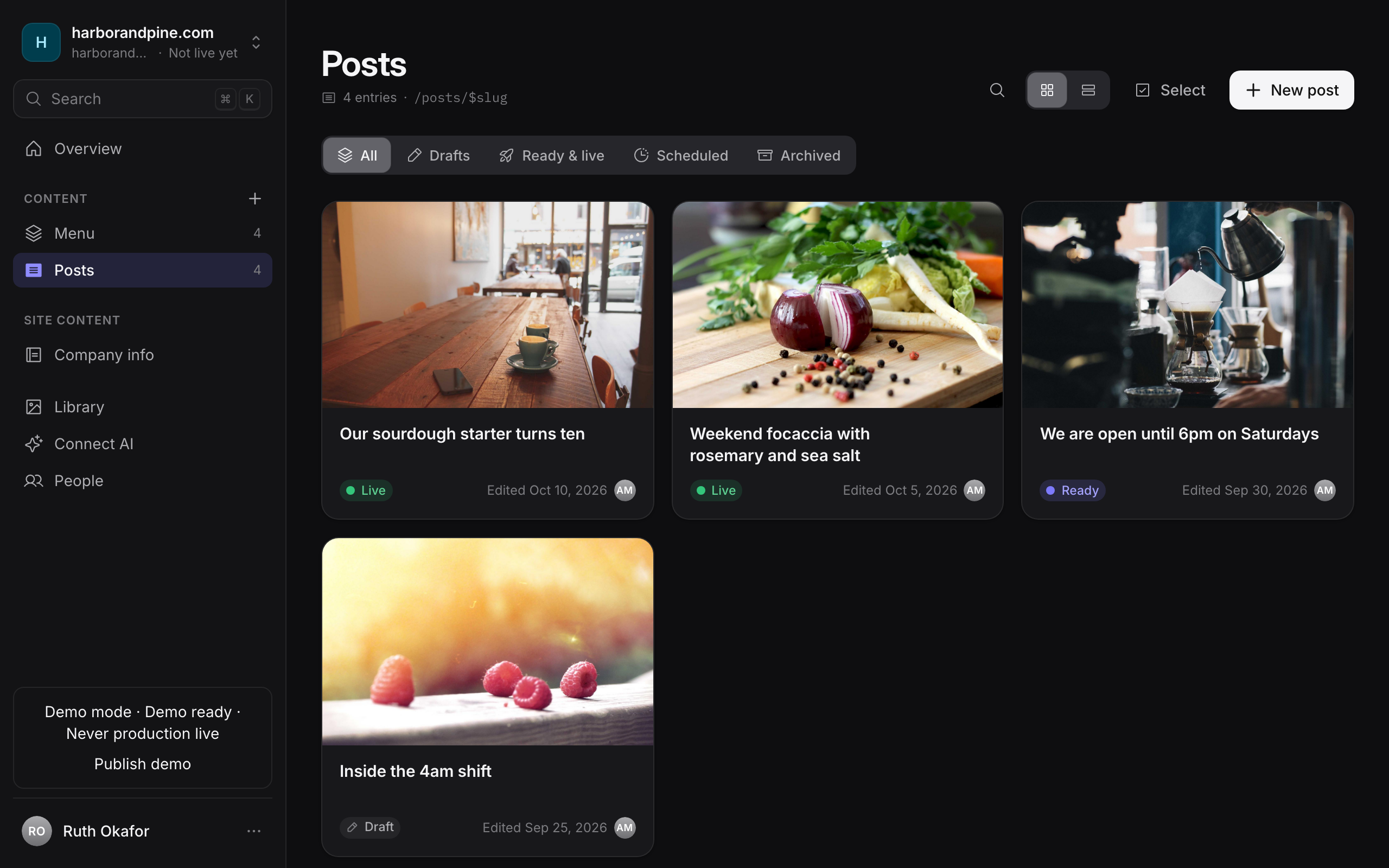
Across the top of the list you find these controls:
- Search. Select it, or press
/, to type and filter the list by name. - List and Cards views. Cards shows each entry as a tile with its image. List shows the entries as rows.
- Select lets you pick several entries and act on them together. See Writing and editing entries for the bulk actions.
- New followed by the content type name, for example New article, creates an entry. Press
nas a shortcut.
Filters
Under the header, a row of filters shows only the entries with a certain status.
| Filter | What it shows |
|---|---|
| All | Every entry, whatever its status. |
| Drafts | Entries that are still drafts. They have never been marked ready, or they were moved back to draft. |
| Ready & live | Entries that are marked ready, including those already on the live site. |
| Scheduled | Entries with a set time when they will go live. |
| Archived | Entries you have archived. They are kept in the CMS but left off the website. |
If a filter shows nothing, the list says Nothing here has this status yet. Select All to see every entry again.
The list loads 25 entries at a time. Select Show more at the bottom to see the next page. The counter shows how many you have seen, for example Showing 25 of 40.
Each entry shows a status label. The labels are explained on Drafts, ready and live.
Search and the command palette
Press ⌘K on a Mac, or Ctrl+K on Windows and Linux, to open the command palette. It starts with the text Search or jump to…
From here you can jump to a page, find an entry by its title, open a site, create an entry, upload to the Library, change the language, or switch between light and dark appearance. The groups you see depend on your role.
Press g and then o to go to Overview, g and then l for the Library, g and then p for People, and g and then s to switch the workspace. These shortcuts are not available while you are typing in a field.
To see every shortcut, open your account menu and select Keyboard shortcuts.
Your account menu
Select your name or picture at the bottom of the sidebar to open the account menu. From there you can change the appearance, change the interface language, open your Account page and sign out.
Changing the interface language changes only the menus and buttons. It does not translate the text you write in entries.
Use the CMS on a phone
On a phone, the layout changes to suit a small screen.
- The top bar shows the workspace control, a search button, the Go live status and your account picture. The Go live status shows Not live, Going live, Failed or the number of changes ready.
- The bottom tabs take you to Overview, Content, Library and More.
- Content lists the content types of the site. Select one to open its list.
- More holds the pages your role allows, such as People, Settings, Activity and Go live.
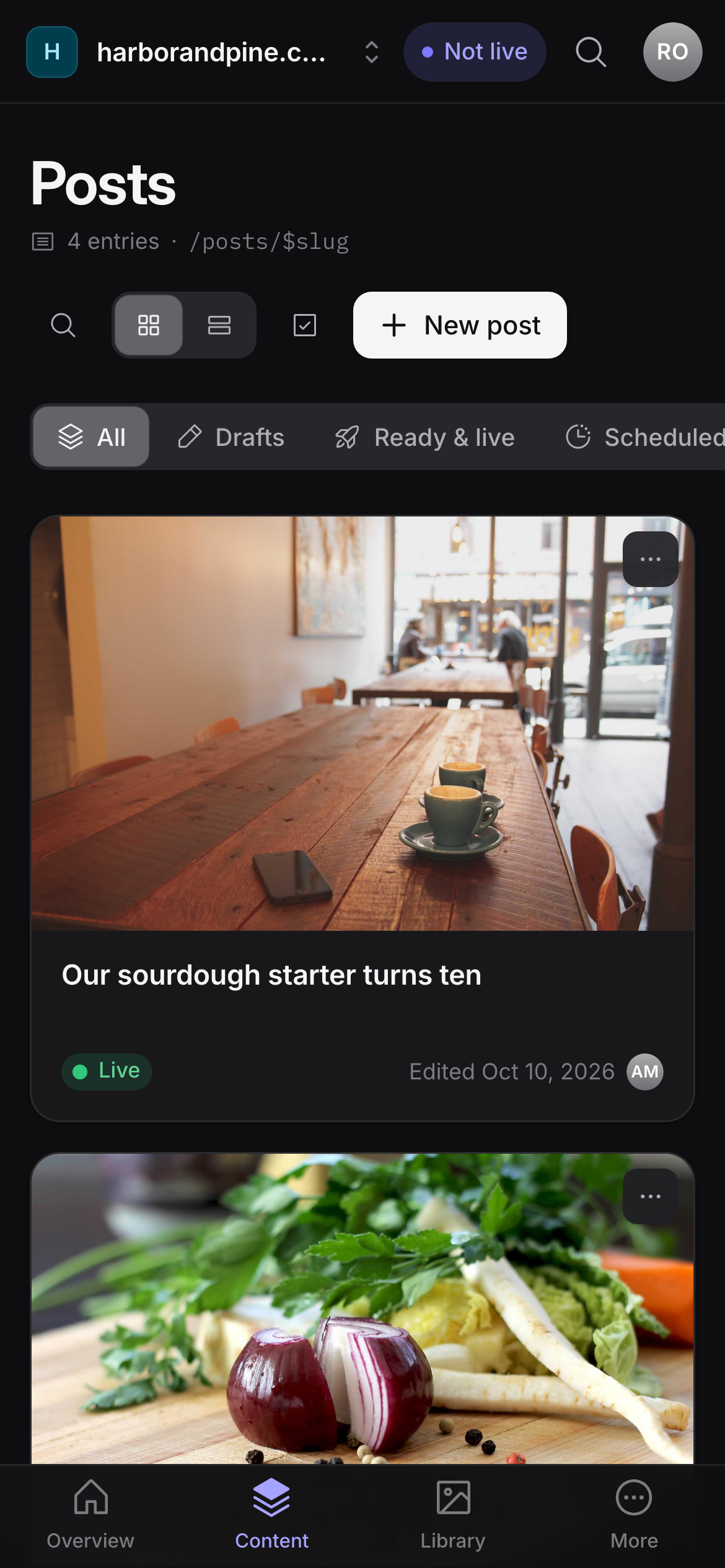
The editor works the same way on a phone. Your drafts still save automatically. Open Details to change the slug, fields, SEO settings and history.