 Areca Docs
Drafts, ready and live
What each entry status means, who can approve content, how edits after approval behave, and how statuses appear in lists.
Every entry has a status that tells you where it is in the publishing process. The status is shown as a small label on each entry in a list, and at the top of the editor. This page explains what each label means, who can move an entry from one status to the next, and what happens when you change an entry after it is approved.
The statuses
| Status | What it means |
|---|---|
| Draft | The latest saved version. Only the CMS and previews show it. The live website does not. |
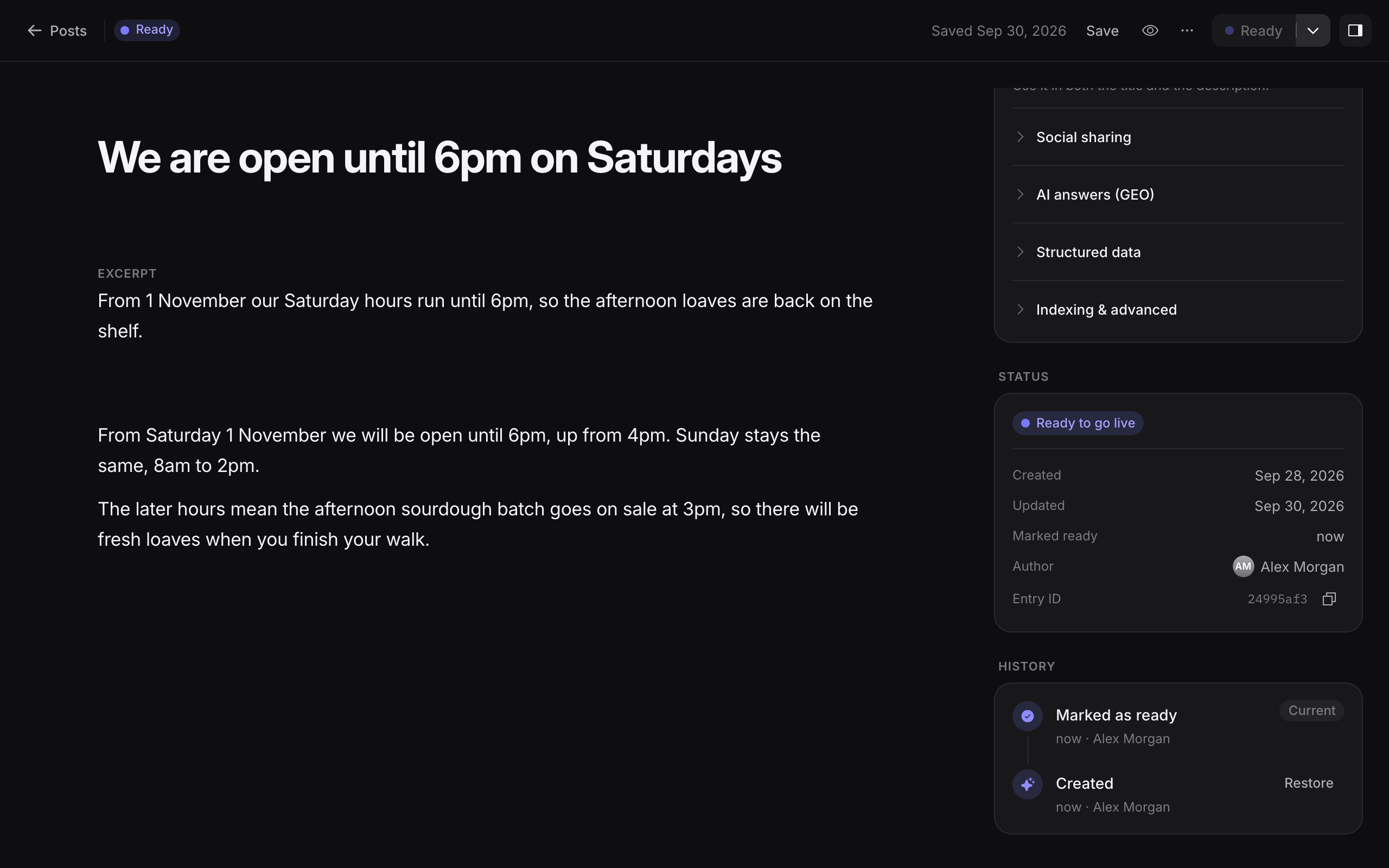
| Ready | An owner has approved this version. It goes live the next time the site is published. The editor shows the full label Ready to go live. |
| Live | This version is on the live website now. |
| Scheduled | An owner has set a time for this version to go live. The label shows the time, for example Fri 9:00. |
| Archived | The entry is kept in the CMS and is left off the website. |
An entry that is ready or live can also show a small dot next to its label. The dot means Edited since ready: the draft has changes that are not yet marked as ready.
How an entry moves between statuses
- Draft to Ready: an owner selects Mark as ready.
- Ready to Live: an owner starts Go live, and the release succeeds.
- Draft or Ready to Scheduled: an owner schedules the entry for a set time. The scheduled version is frozen at that moment. See Scheduling.
- Ready back to Draft: an owner selects Move back to draft in the More actions menu. The live website keeps the old version until the next successful Go live.
- Any status to Archived: an owner archives the entry. See Writing and editing entries.
Saving a draft never changes the status of the live website. Only a Go live changes what visitors see.
Who can mark an entry ready
Only owners and agency admins can mark entries ready, schedule them, and start Go live. Editors can write and edit drafts, and they can preview them.
If you are an editor, the Mark as ready button is disabled, and the editor explains why: Only owners can publish. Your changes are saved as a draft and an owner can make them live.
Owners can mark one entry from the editor. They can also select several entries in the list, choose Select, and then select Mark as ready in the selection actions. Areca confirms with Marked 3 entries as ready.
Mark as ready
When you mark an entry as ready, Areca checks it first:
- Every required field must be filled in.
- Every Link to entry field must point to an entry that is already ready.
If a check fails, the entry stays a draft and the editor shows what needs fixing.
After it is ready, the status changes to Ready, and the editor shows Marked as ready. It goes live with the next Go live.
To mark an entry ready and publish the whole site straight away, open the menu next to Mark as ready and select Mark as ready & go live now. This is the same as marking the entry ready and then starting Go live.
Go live publishes the whole site
A Go live does not publish one entry on its own. It publishes every ready change on the site, including changes that other people marked ready. Check the What's changing list in the Go live panel before you start one. See Going live.
Changes after an entry is ready
You can keep editing an entry after it is ready or live. Your changes go into the draft, and the approved version stays as it was. The live website and the next Go live use the approved version, not your draft.
When the draft differs from the approved version, the entry shows Edited since ready, with the note The draft has changes that are not marked as ready yet.
To approve the new changes, an owner selects Mark as ready again. Until then, the approved version is the one that goes live.
If an entry is live, the Mark as ready button is disabled with the note This version is live. Edit it to mark a new version as ready. Make your changes in the editor first. The status changes once you have something new to approve.
Changes ready
The CMS counts the entries that are ready but not yet live. You see this as changes ready, for example 3 changes ready, in the Go live box in the sidebar and in the Go live panel. The panel lists them under What's changing.
Statuses in lists
Each entry in a content list shows its status label. Use the filters above the list to show only one group:
- Drafts shows entries with the status Draft.
- Ready & live shows entries that are ready or live, so you can see what is approved.
- Scheduled shows entries that have a set time.
- Archived shows archived entries.
If you want to check what will go live, open Ready & live and then open the Go live panel. See Finding your way around for more about the filters.
Related
Site content
Edit the single sections of copy that make up a site, such as company details and the home page, then mark them ready, schedule them, discard drafts and preview them.
Previewing drafts
Open a draft of an entry on the real website before you mark it ready, and know how long the preview link stays valid.