 Areca Docs
Scheduling
Set a time for a ready entry to go live, see what happens when that time arrives, and change or cancel the schedule.
Scheduling lets you decide in advance when an entry goes live. You might prepare a press release on Friday and have it go live on Monday at 9:00, without anyone needing to press Go live at that time. Only owners and agency admins can schedule an entry.
Schedule an entry
Open the entry in the editor. Make sure it is complete, with every required field filled in. Then:
Open the menu next to Mark as ready. Select the arrow beside the Mark as ready button, then select Schedule….
Pick a time. The dialog is called Schedule going live. You can choose a quick pick, or enter a date and a time:
- In 1 hour
- Tomorrow 9:00
- Monday 9:00
Otherwise, choose a Date and a Time.
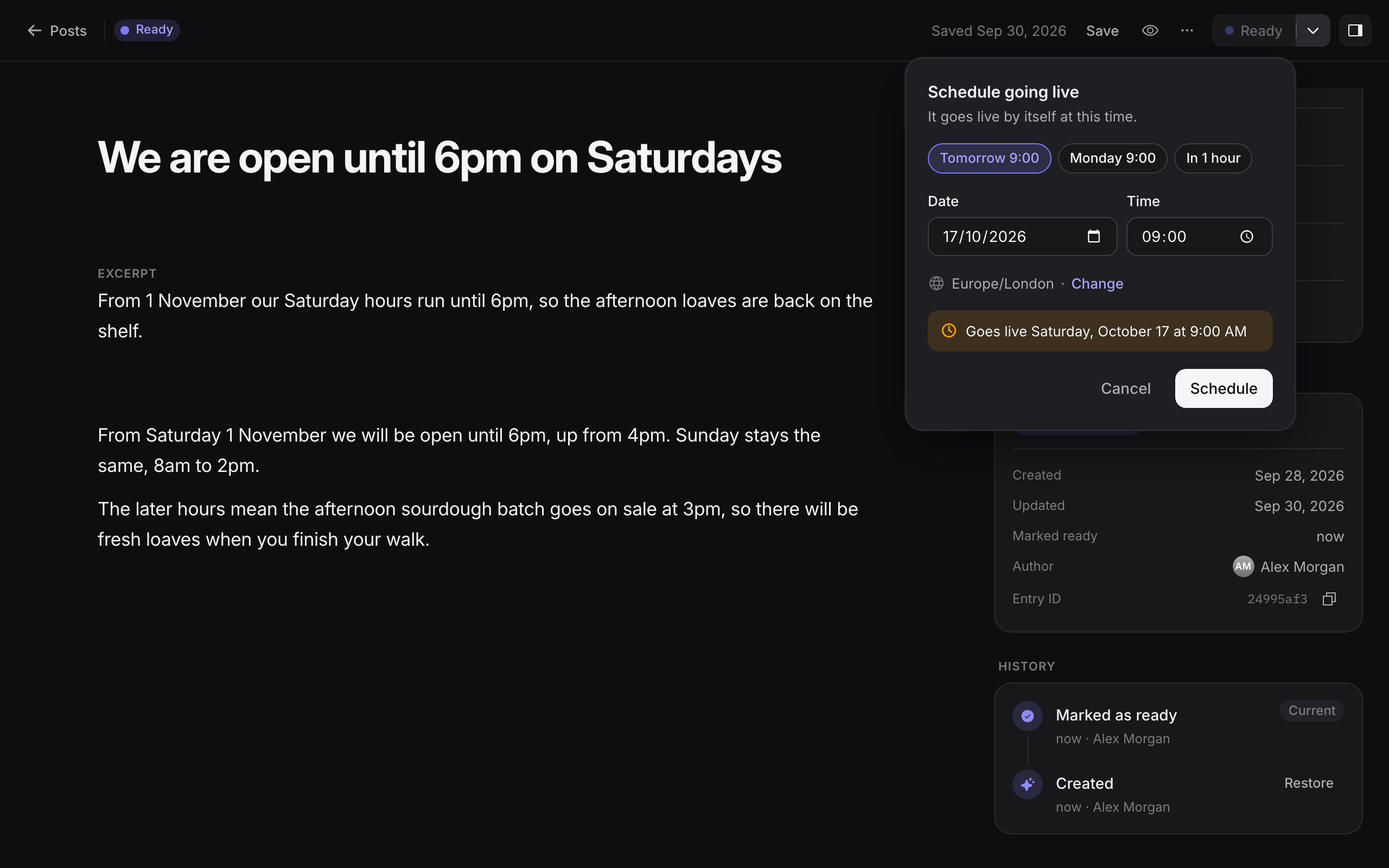
Check the time zone. The Time zone is set to the time zone of your computer. Select Change to pick another one. The time is always read in the zone shown.
Select Schedule. The dialog confirms Goes live with the date and time you chose. The entry's status changes to Scheduled, and the label shows the time, for example Fri 9:00.
The time must be in the future. If you pick a time that has already passed, the dialog says Pick a time in the future. If you pick a time that does not exist in the chosen zone, because the clocks change that night, it says That date and time does not exist in this time zone. Pick a different time.
What happens at the scheduled time
Areca checks for due schedules every 15 seconds or less. When a scheduled time has arrived, Areca starts a Go live for the site by itself. The release shows Started automatically in the Go live history.
A scheduled Go live works like any other Go live:
- It publishes every ready change on the site, not only the scheduled entry. See Going live.
- The scheduled version of the entry goes live only if the release succeeds. If the release fails, the live site keeps its previous content, and the entry stays scheduled. Open the Go live panel to see what went wrong. Areca retries automatically.
- If another release is already running for the site, Areca waits and starts the scheduled release afterwards.
The scheduled version
When you schedule an entry, Areca saves the draft as it is at that moment as the scheduled version. The editor shows the scheduled version and its time, so you can see what will go live.
You can keep editing the draft after you schedule it. Those edits do not change the scheduled version. To send a newer version instead, schedule the entry again.
Change the schedule
To move the time, open the menu next to Mark as ready and select Schedule… again. The dialog opens with the current time, so you only need to change it. Choosing a new time replaces the old one, and the scheduled version is updated to the current draft.
Cancel a schedule
To stop an entry from going live at its scheduled time, open the menu next to Mark as ready and select Cancel schedule. The editor confirms with Schedule cancelled.
After you cancel, the entry goes back to the status it had before. If the entry was ready, it becomes Ready again. If it had never been ready, it becomes a Draft. The draft itself is not changed.
Cancelling does not remove the entry from the live site. The live site keeps showing whatever it showed before. It changes only at the next Go live.
Time zones and daylight saving
Areca stores the time you pick together with its time zone. A schedule for 9:00 in one zone is still 9:00 in that zone, even if your computer is in another zone at the time. When you are not sure which zone to use, pick the zone of the audience you are publishing for.
Related
Visual editor
Edit an entry or site content section beside a live preview of the page. See changes as you type, and click part of the page to jump to its field.
Going live and releases
How Go live publishes your ready changes to the website, what each release status means, and how to recover from a failed release or roll back.