 Areca Docs
Languages
Publish a site in several languages. Set the main language, choose required languages, translate fields and URL paths, and see what happens when the main language changes or a language is removed.
A site can publish the same entries and site content sections in several languages, for example a vacancy in Dutch and English. The agency picks the site's languages and its main language. Editors write each language in the same entry. Visitors see their own language, or the main language when a translation is missing.
Sites with one language see none of this. Nothing in the editor or the content changes until you add a second language.
Don't confuse content languages with the CMS's own interface language. The interface language is set in the account menu and changes only the CMS's buttons and labels. See Account.
Set up languages
Agency admins set the languages in Settings → Languages on the site. Until a site has more than one language, the tab explains what it does and offers Add language.
- Add language opens a searchable list. Type a name or a code such as
nlornl-BE. Each language is shown by its own name, such as "Nederlands". - Drag the languages to change their order. This is the order of the language tabs in the editor and of the fallback chain (see below).
- Main language is the language the site is written in first. Choose it with the radio button. Visitors who don't match another language see the main language. The main language can't be removed; choose another main language first.
The languages are also set in areca.config.ts (see the SDK's multilingual guide). When the site is pushed from its project, the languages, the per-language URL patterns and the translatable fields come with it.
To go back to a single-language site, remove every language except the main one.
Required and optional languages
Languages are optional by default. A translation goes live only when it is complete: every required translatable field is filled in for that language. An incomplete optional translation is not published, and visitors get the main language instead.
The main language is always required. To require more languages, open the collection or section in the schema editor and set Required languages. For each required language:
- an entry or section can't be marked ready or scheduled until that language is complete;
- the error names the language and the missing fields, for example "Add English to mark ready: Title, Body";
- the editor shows the language as Required before Ready.
Required languages are per collection or section, so a vacancy can need English while a blog post needs nothing extra.
Translatable fields
Each field is either written in every language or shared. The schema editor has a Translatable switch on every field. The defaults are:
| Field type | Default |
|---|---|
| Text, long text, rich text, URL | Translatable: editors write it in each language |
| Image, date, date and time, select, reference, boolean, number | Shared: one value for every language |
Change the switch when the default doesn't fit. Shared fields show a Same in all languages marker in the editor. Prices, contact details and product names are usually shared. A shared image can be made translatable when each language needs its own picture.
Turning a field's switch off keeps the value in the main language. Its values in other languages are kept but not used, and they come back if you turn the switch on again. Turning it on starts the other languages empty.
SEO fields (title, description and the rest of the SEO panel) are always written per language.
Slugs and URL paths
Each language can have its own slug, the last part of the page address. In the entry's Details panel, the slug field follows the selected language. Leave it empty to use the main slug. Slugs must be unique in the collection within each language.
Each collection can also have its own URL pattern per language. In the schema editor, open Translate URL path and enter a pattern for each language, for example /vacatures/$slug for Dutch. Leave a field empty to use the main pattern. Patterns must contain $slug, and they don't include the language prefix: the site adds it.
Editing languages
The entry and section editors show a language bar under the top bar. It stays in view while you scroll.
- One tab per language, in site order, with the endonym (for example "Nederlands"), a Main marker on the main language, and a status: complete, N missing or not started.
- Select a tab to edit that language. The selected language is kept in the page address (
?lang=) and is remembered for the site. The arrow keys move within the bar, and Alt+Shift+Left or Right switches language anywhere in the editor. - In a language other than the main one, a row says "Editing English. Shared fields change every language." Each translatable field shows the main-language text beneath it as a muted reference, with Copy to start from it.
- The Details panel lists each language's completeness, so you can see what is missing before you mark the entry ready.
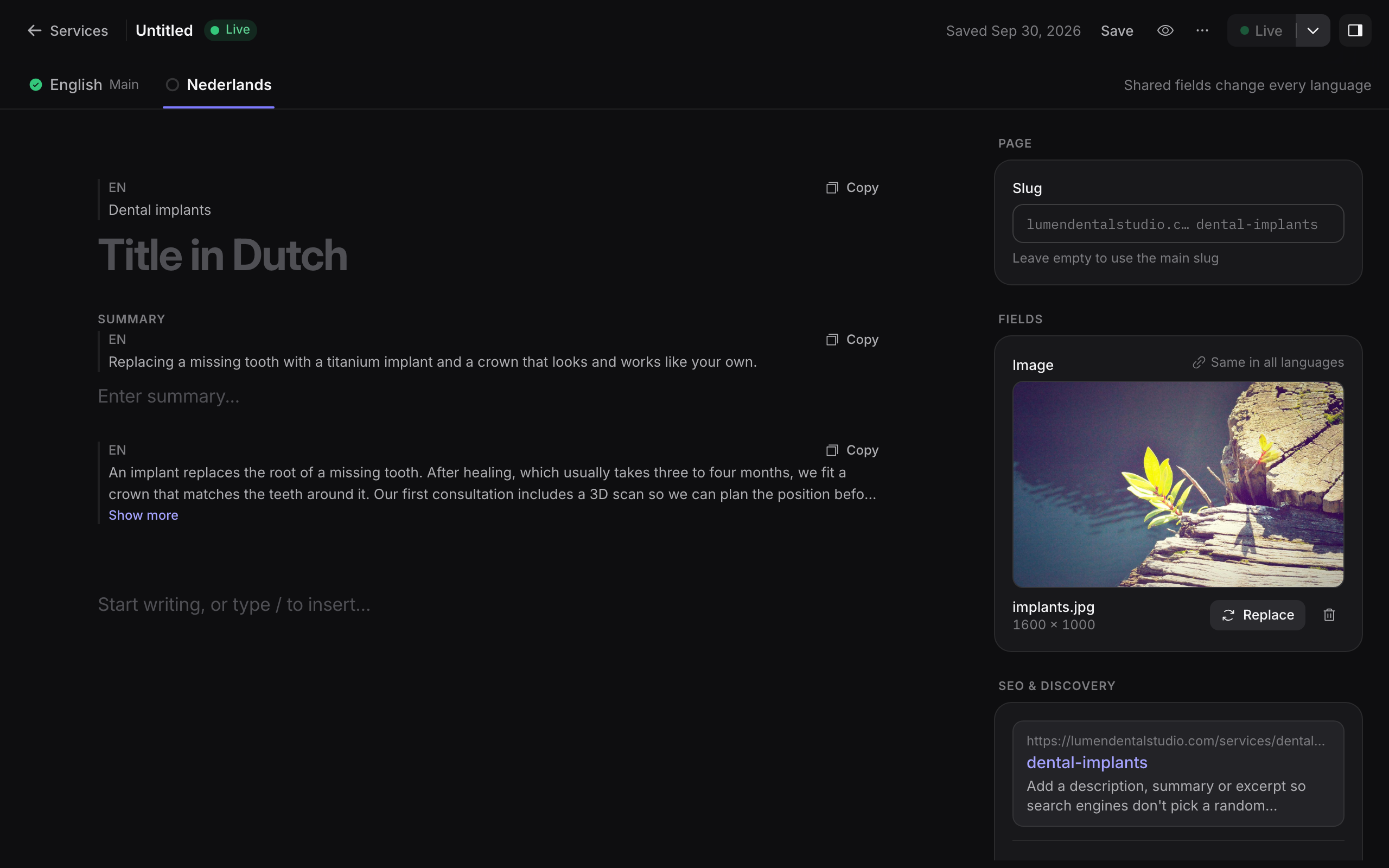
Translate with AI
On a language other than the main one, Translate empty fields asks the agency's AI provider to translate the empty translatable fields from the main language. It also covers the SEO fields it can translate. The result is an ordinary draft: review it, change what you need, then save. Filled fields are not replaced. The provider and model are set in AI settings, and what is sent to the provider is described in AI data handling.
Coverage in lists
The entry list shows the coverage of each entry: a small chip per language with its state (complete, partly filled or not started). Use the Missing translation filter to see the entries that lack a language. The filter is also available to MCP clients as missingLanguage on list_entries (see MCP tools).
Library items keep their alt text per language. A visitor sees the alt text of their language, or the main language's when a translation is missing.
Changing the main language
Changing the main language is allowed. The confirmation dialog says how many entries and sections don't have the new main language yet.
- Nothing is deleted. Every language keeps its text.
- Live content keeps being served, using the fallback chain below.
- Entries that lack the new main language show Needs that language, and they can't be marked ready until someone adds it.
Removing a language
Removing a language hides it. Visitors stop seeing it, and editors no longer see it in entries. The dialog asks you to type the language to confirm. Nothing is deleted: the translations are kept, and they come back if you add the language again.
How a visitor gets a language
When a site asks for a language, Areca serves the first match from this chain:
- the requested language, when it is complete;
- the same language without its region (
nl-BEfalls back tonl); - the main language;
- the first complete language in the site's order.
The entry tells the site which language it served and whether that is a fallback. Sites can also ask for untranslated entries to be left out. See reading content and the multilingual guide.
Related
- Site settings for the Languages tab and the other site settings.
- Content types for fields, the translatable switch and URL patterns.
- Writing entries for the editor.
- Going live for the required-language checks at publish time.
Agency connector
One AI connector for every client and site you manage, production and development, with the site chosen on each call. Who can use it, how to find a site, what it can and cannot do, and how to connect, revoke and audit it.
Content types
How content types are defined by the website project and edited in the CMS, what happens when the two disagree, and how to view a site's content schema.