 Areca Docs
Clients and sites
Create clients and sites, understand the site key and site token, rotate a token, and delete clients and sites.
A client is the company you build and run websites for. Each client has one or more sites, and each site connects to one website project. Clients and sites are created and managed in the Agency workspace, so only agency admins can add them.
Before you start
Agency admins must use two-factor authentication. Creating a site, rotating a token and deleting a client or site ask you to confirm with a fresh authenticator code. Keep your authenticator app ready. See two-factor and step-up.
Create a client
Open the Agency workspace. Use the workspace switcher at the top of the sidebar, then open Clients.
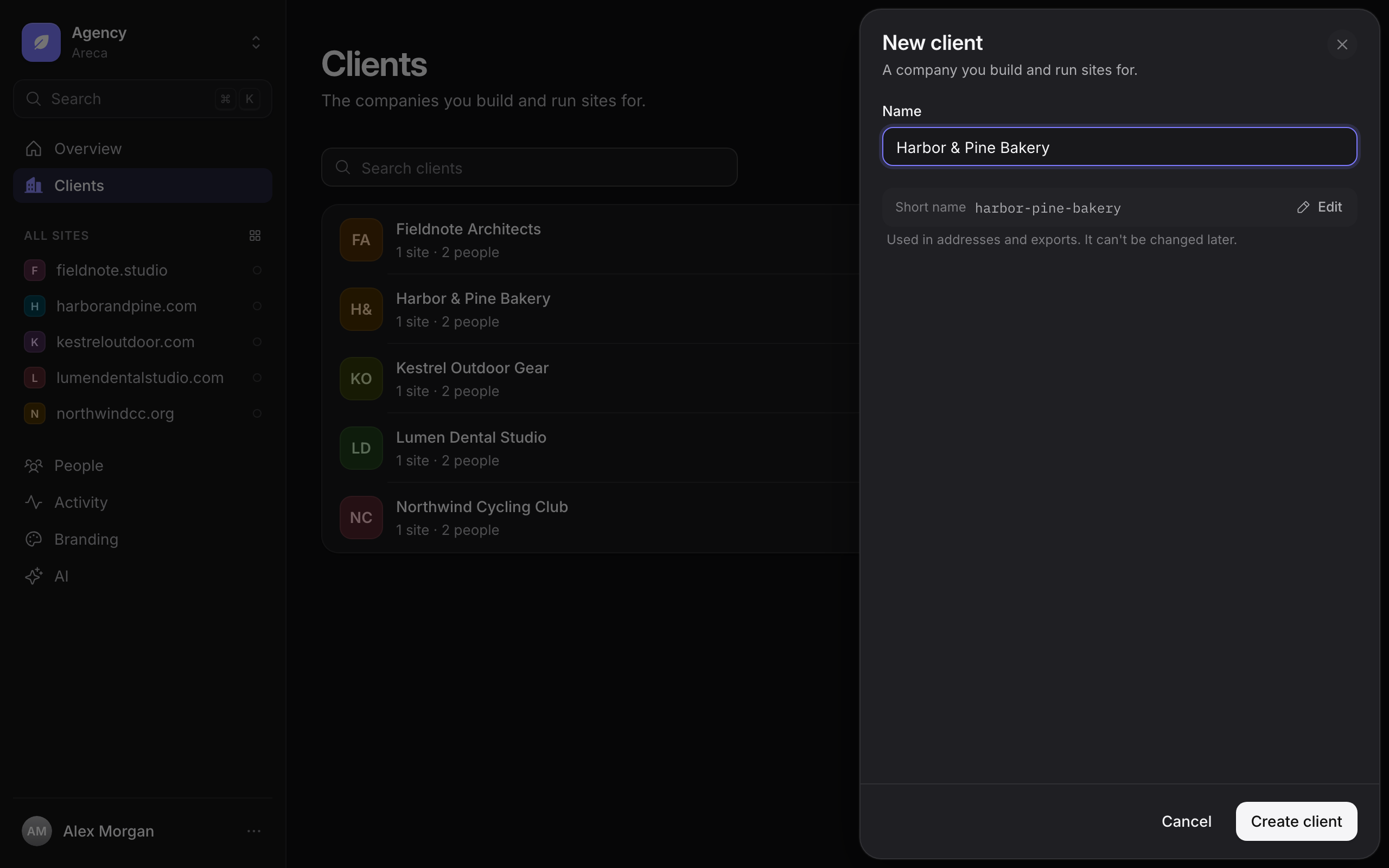
Select New client. Enter the Name, as your team and the client will see it.
Check the short name. Areca fills in a Short name from the name. It appears in addresses and exports, and you can't change it later.
Select Create client. You land on the client's page, where you can add its first site.
Create a site
Open the client and select New site. The sheet has two steps.
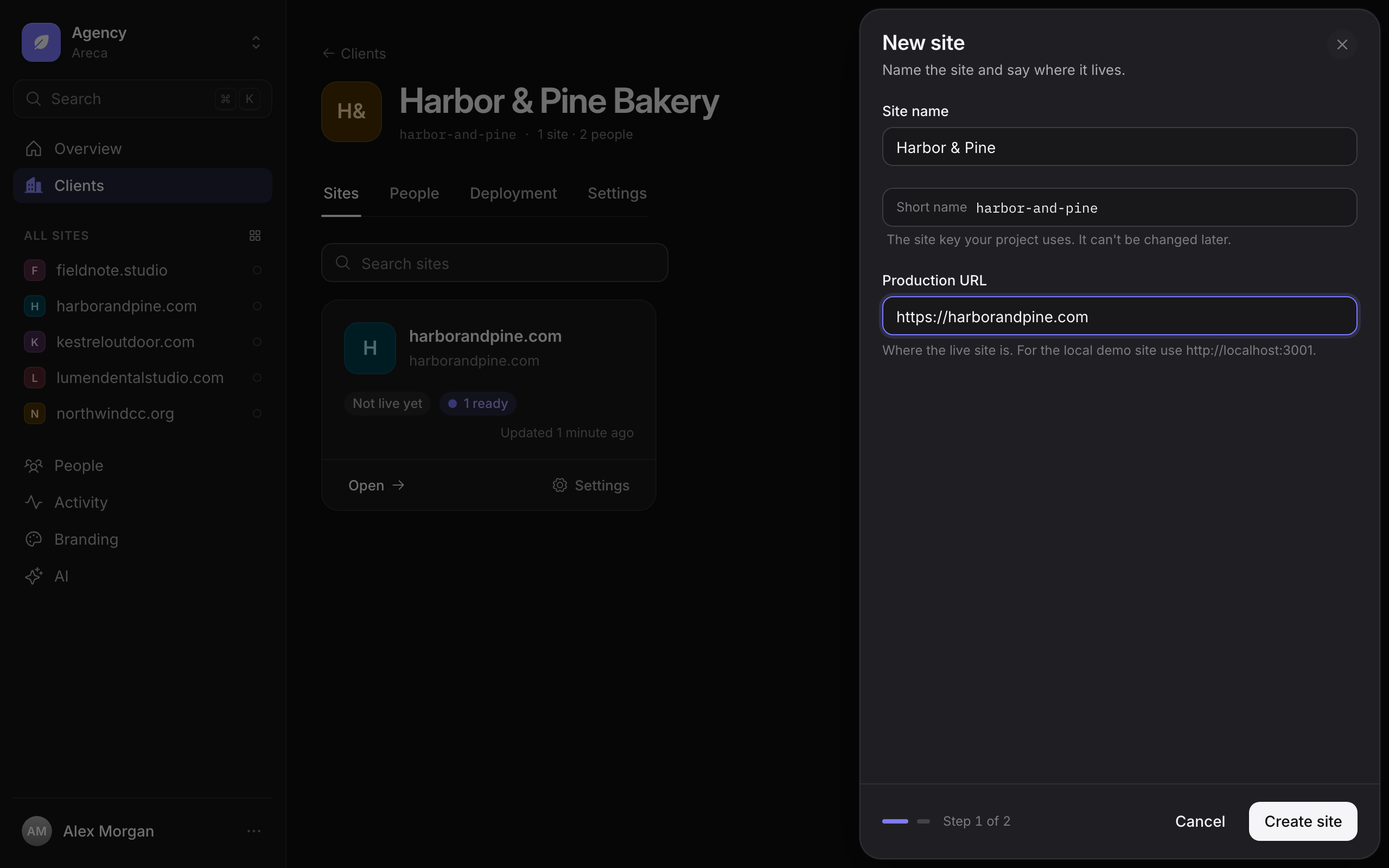
Step 1: describe the site.
| Field | What to enter |
|---|---|
| Site name | The name shown in the sidebar and the site picker. |
| Short name | The site key. Your website project uses it to identify the site. It is suggested from the site name and can't be changed later. |
| Production URL | The full address of the live site, such as https://example.com. Previews open at this address too. |
Select Create site.
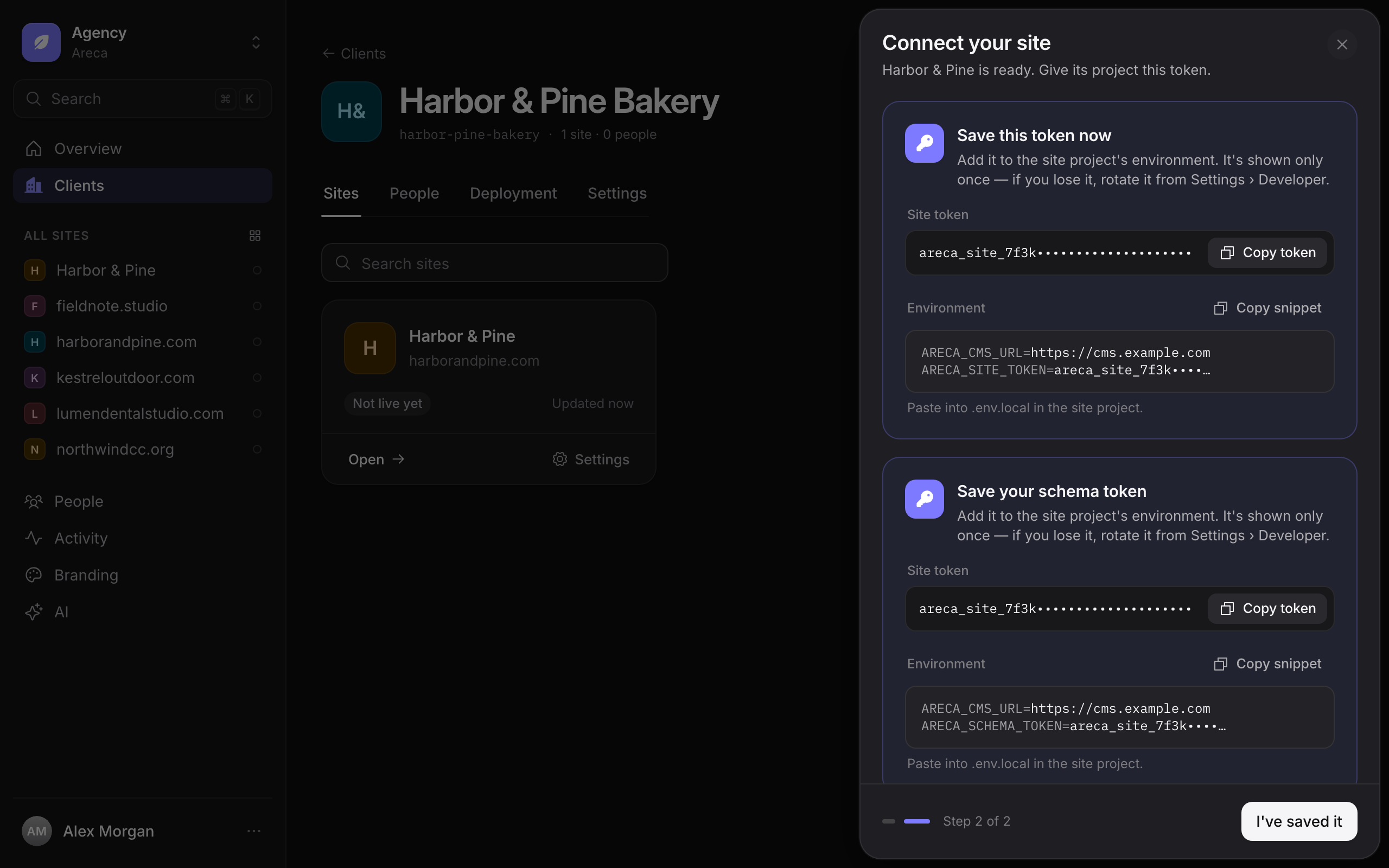
Step 2: connect the site. Areca shows the site token once, with a ready-to-paste environment snippet. Copy the snippet into the website project's .env.local file, or run areca init in the project and paste the token when it asks. Then select I've saved it.
The token is shown once
Areca stores only a secure fingerprint of the site token, so it can't be displayed again. If you lose it, rotate it (see below). Rotating also replaces the old token.
If you leave step 2 without selecting I've saved it, the site stays unconfirmed, and a card on the client's Sites tab reminds you to confirm. If you lost the token before confirming, rotate it.
The site key and the site token
These are two different values, and only one is secret.
- Site key is the site's short name. It identifies the site to the website project, for example as
--site-keyinareca init. It is not secret, and you can see it at any time in Settings › Developer. - Site token lets the website project read published content and sync its content types. Keep it secret. It is stored in the project as
ARECA_SITE_TOKEN.
Areca also issues a separate schema-write token for pushing content types from the project. See content types and tokens for how the two tokens are used and handled.
Rotate a site token
Rotate a token when it may have been exposed, or when someone who had it no longer needs it.
Open the site's Settings. In the site's sidebar, select Settings, then Developer.
Select Rotate token… in the Site token card, then confirm.
Copy the new token. Areca shows it once. Paste it into the website project's environment straight away.
The old token stops working immediately
Any website build that still uses the old token will fail until you update its environment. Change the project and rotate in the same sitting.
To replace the schema-write token, use Rotate schema token in the same tab. The website's builds never need it.
Change a site's name or Production URL
Open Settings › General. You can change the site name and Production URL there. The site key can't be changed. See site settings for every tab.
Delete a site
Deleting a site removes its entries, releases and settings for everyone who has access to it. Files in the Library stay.
Open Settings › General. Scroll to the Danger zone.
Select Delete site…, then type the site key to confirm.
This can't be undone
Deleting a site cannot be undone from the CMS. Make sure nothing in its entries or releases is still needed.
Delete a client
Deleting a client removes its people and their open invitations. Areca blocks the deletion while the client still has sites, so delete the sites first.
Open the client and select the Settings tab.
Select Delete client in the Danger zone, then type the client's short name to confirm.
Related
- Site settings: the tabs for each site.
- People and invitations: who can open a client's sites.
- Deployments: connect a site to a deployment target.
- Tokens: how site tokens are stored and handled.