 Areca Docs
Content types
How content types are defined by the website project and edited in the CMS, what happens when the two disagree, and how to view a site's content schema.
A content type (also called a collection) is the kind of thing editors write on a site, such as Articles or Pages. Each content type has a name, a route that entries are published to, and a list of fields. Editors see the content types that are turned on in the sidebar, and each content type holds its entries.
Content types can be defined in two places: in the website project, and in the CMS. The website project is the source of truth. Read the next section before you edit anything in the CMS.
Where content types come from
The usual setup is for the developer to define content types in the website project, using the site SDK, and push them to Areca. The developer runs areca manifest push, and Areca stores the content types for that site. See defining content for how to write them, and schema sync for how pushes work.
Agency admins can also create and change content types in the CMS, under Settings › Content. This is useful for a quick fix or a type that the project doesn't need, but it works against the project's definitions. Read the rules below before you do it.
What happens when they disagree
Every push from the website project overwrites the content types in Areca:
- A content type in the push gets the name, route and fields from the project, and is turned on. Any change you made to it in the CMS is replaced.
- A content type that the project doesn't include is turned off. Its entries are kept, but they won't go live. The content type shows a notice that it is no longer in the site project.
- A content type you created in the CMS, which the project doesn't define, is turned off at the next push.
So the rule is simple: if a content type should stay, define it in the website project. Use the CMS for fields and layout only when you can also make the same change in the project.
Edits in the CMS can be lost
The next push from the website project replaces the name, route and fields of every content type it defines. Make the change in the project, then push it.
View a site's content schema
Agency admins can see every content type for a site and its fields.
Open the site's Settings. In the site's sidebar, select Settings, then Content.
Read the list. Each row shows the content type's name, its key and route, its field count, and an On or Off switch.
Select a row to open the schema editor. The Fields tab lists each field in order. The Settings tab shows the name, key, route and availability.
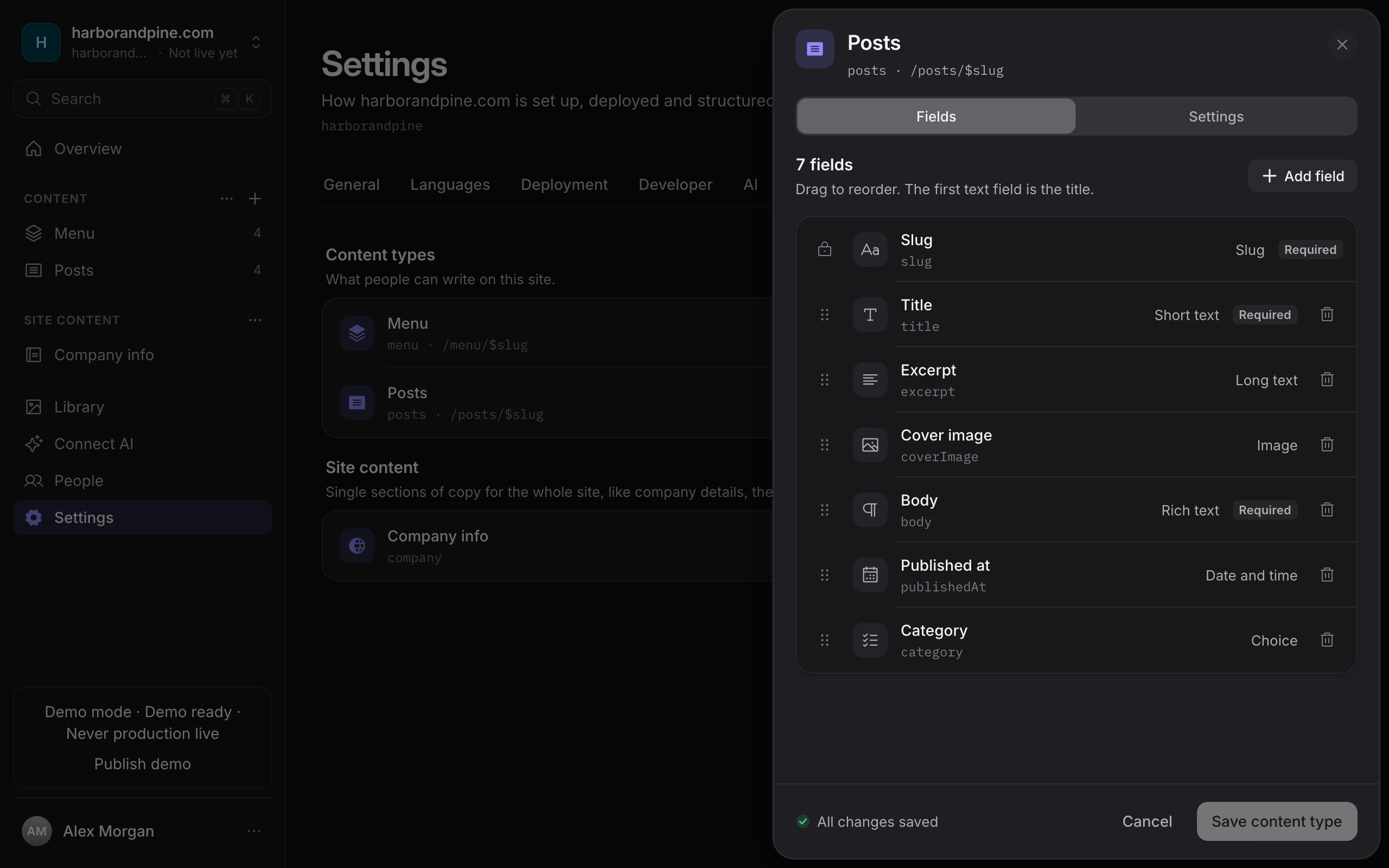
Editors and client owners can't open this view. They see the content types in the sidebar, and only the types that are turned on.
Turn a content type on or off
Use the switch on the row in Settings › Content. A content type that is off is hidden from writers, and its entries are left out when the site goes live. Turn it back on to restore it.
Fields and the route
Each content type needs these settings:
| Setting | What it means |
|---|---|
| Name | The plural name people see, such as Articles or Pages. |
| Key | The identifier the website project uses. It can't be changed after the content type is created. |
| Route pattern | Where entries appear on the site. $slug is replaced by each entry's slug, such as /blog/$slug. |
| Fields | The inputs an editor fills in. Drag fields to reorder them. The first text field is the title. |
Every content type has a Slug field, locked at the top. It can't be removed or changed.
Each field has a Label, a Key and a Type. Some fields also have options:
| Type in the CMS | Use it for |
|---|---|
| Short text | A single line of text. |
| Long text | Several lines of text. |
| Rich text | Formatted text. |
| Image | An image. |
| Date | A calendar date. |
| Date and time | A date with a time. |
| Choice | One value from a list you define. |
| Link to entry | An entry from another content type. |
| Slug | The part of the address that identifies an entry. |
| Yes / no | A switch. |
| Number | A number. |
| Web address | A web address. |
Each field can be required, which means it must be filled in before an entry can be marked as ready. For the rules and limits of each field type, see field types.
Delete a content type
Deleting a content type removes it, along with all of its entries and their revision history. Open the content type's Settings tab and select Delete content type. The CMS describes this as permanent, and it can't be undone.
Delete only what you mean to lose
Before you delete a content type, check that its entries are not needed. If the website project still defines the content type, the next push will create it again, but its entries won't come back.
Site content sections
Single sections of copy, such as company details or the home page, are not content types. They are managed the same way, with their own list under Settings › Content: Site content. Agency admins create and change them there, and the website declares them under globals in areca.config.ts. See Site content for editors and Site content (globals) for developers.
Related
- Site settings: the Content tab and the other tabs.
- Defining content: how to define content types in the website project.
- Field types: every field type and its options.
- Schema sync: how content types are pushed.
Languages
Publish a site in several languages. Set the main language, choose required languages, translate fields and URL paths, and see what happens when the main language changes or a language is removed.
People and invitations
Invite people to a client, choose Owner or Editor, resend or revoke invitations, change roles, and remove people.