 Areca Docs
Going live and releases
How Go live publishes your ready changes to the website, what each release status means, and how to recover from a failed release or roll back.
Going live publishes your site. Saving a draft never changes the public website. When an owner presses Go live, Areca takes a snapshot of the whole site, including every entry marked ready, builds it, deploys it and reports the result as a release.
Only owners and agency admins can go live. Editors can open the same panel and see what is changing, but the button explains that only owners can publish.
What goes into a release
A release includes the whole site as it is at the moment you go live:
- Ready entries are included with the version that was marked ready.
- Live entries stay live. A release is a full snapshot, so anything not changed is included again as it is.
- Edited since ready entries use the ready version, not the newer draft. Mark the newer draft ready to include it in the next release.
- Drafts that were never marked ready are not included.
If an entry is scheduled, its approved version goes live when the scheduled time arrives. Areca starts that release automatically. See Scheduling.
Open the Go live panel
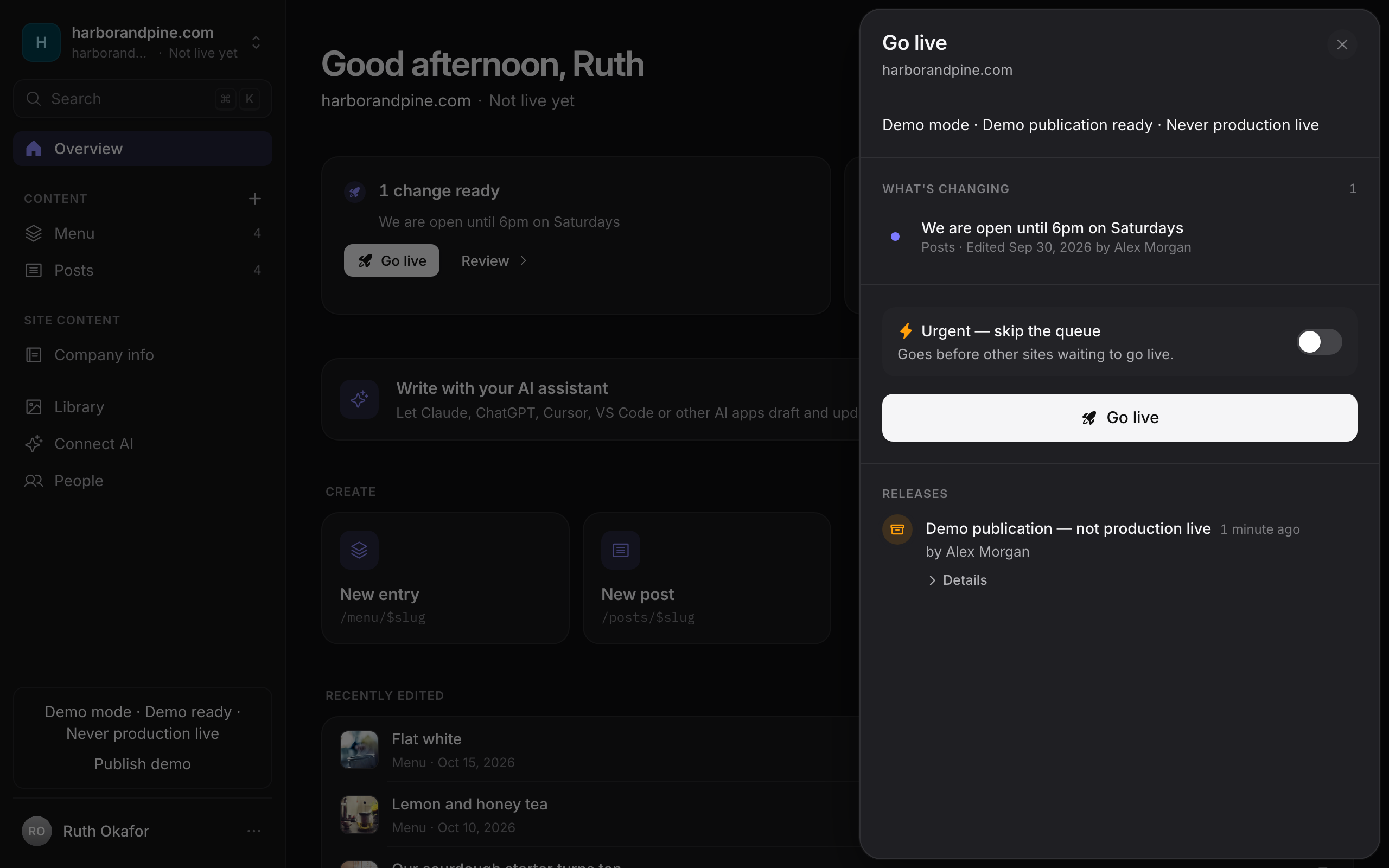
Open Go live from the site sidebar or from the Overview. The publishing indicator in the top bar opens the same panel. The panel shows:
- A status line at the top, such as "acme-site is live and up to date."
- What's changing, the list of ready entries that the next release will include.
- Urgent — skip the queue, a switch for the next release.
- Go live, the button that starts a release.
- Releases, the history of recent releases.
Demo and production mode
Each site runs in one of two publishing modes, set by an agency admin on Settings › Deployment. Production deploys the site and counts a release as live only after its health check passes. Demo creates a release without deploying it, and the release never counts as live. On a Demo site the button reads Publish demo release instead of Go live. Use Demo only for previews and testing. See Deployments for how to set up each mode.
In Production mode, Go live is blocked until the site has a deployment target (a Dokploy application or a Cloudflare project) and a health check URL.
Urgent: skip the queue
Areca builds one release at a time for each site. When several sites are waiting, they build in order.
Turn on Urgent — skip the queue before you press Go live to place your release ahead of other sites that are waiting. The switch changes only the order in the queue. It does not cancel or replace other releases.
Release progress
While a release runs, the panel shows its steps in order. A release that finishes successfully shows Done.
| Step | What is happening |
|---|---|
| Queued | The release is waiting for its turn. |
| Building | Areca creates the site snapshot and builds the site. |
| Checking | Areca validates the snapshot before deployment. |
| Deploying | The site is deployed to production. |
| Done | The release is complete. |
After deployment, the health check must report the new release within two minutes, or the release fails. If the deployment itself does not finish within 15 minutes, Areca cannot tell what happened, and the release is marked as having an unknown outcome (see below).
You cannot start a second release for the same site while one is running. The Go live button is disabled until it finishes.
Release statuses
Each release in the Releases list has one of these statuses:
| Status | Meaning |
|---|---|
| Waiting | The release is queued and has not started. |
| Going live | The release is building or deploying. |
| Live | This is the release on the live website. |
| Replaced | The release was live, and a newer release has since gone live. |
| Failed | The release did not go live. The live site has not changed. |
A demo release shows Demo ready instead of Live, with a note that it is not production live.
Expand a release to see its build steps, the time it started, and who started it. A release started by a schedule shows Started automatically.
When a release fails
When the last release fails, the panel says "The last release failed. The live site hasn't changed." The previous release stays live. If nothing has ever gone live, it says "Nothing is live yet."
To recover:
Read the cause. Open the failed release. The panel shows the error, and View log shows the full build log.
Fix validation problems. If the panel lists Fix these first, correct those entries, then try again. Dismiss hides the list without changing anything.
Try again. Press Go live or Try again. A new release starts with the current ready content.
If the problem is in the deployment itself, an agency admin or operator needs to fix it. See Publishing pipeline and Troubleshooting.
Deployments with an unknown outcome
Sometimes Areca cannot tell whether a deployment started, for example when the deployment service stops responding. The release then shows:
The deployment outcome is unknown. Check its status before publishing again.
While this is unresolved, the site cannot start a new release.
- An owner presses Check deployment status. If the deployment is found, the release is updated. If no matching deployment can be found, the site stays blocked.
- An agency admin can clear the block with Release publishing block. You must record how you checked that the deployment was stopped, then type the ID shown in the dialog to confirm. This does not deploy again.
Only use the agency admin option after you have checked the deployment service yourself. A deployment that is still running can overwrite the site later.
Cancel a queued release
While a release is Queued, an owner can open its build steps, select Cancel job and confirm. The release is removed from the queue and nothing is deployed. You can go live again at any time.
A release that has started building or deploying cannot be cancelled.
Roll back to an earlier release
Use rollback when the current live site has a problem and you want to return to a release that worked.
Open the release. In the Releases list, open the menu for a release that was live before and is not live now.
Choose Restore this version. Confirm with Restore this version in the dialog.
Wait for the release. Areca queues a new, high-priority release that uses the saved snapshot of the version you chose.
Rollback does not rebuild from your current drafts, and it does not delete anything. Changes that were marked ready after that release stay ready. They go live the next time you press Go live.
Rollback changes the live site
After the rollback deploys, visitors see the older content. Content published in later releases is not live again until you go live with it.
A rollback that fails can be retried in the same way.
Related
- Scheduling for releasing content at a set time.
- Statuses and review for what ready and live mean for each entry.
- History and activity for the record of who went live and when.
- Publishing pipeline for what happens on the server during a release.