 Areca Docs
Media library
Upload images and PDFs to the shared Library, write alt text, replace or delete files, and understand why some files cannot be deleted.
The Library holds the images and PDFs for your client's websites. It is shared by every site of the client, so you upload a file once and use it on any page. Files appear in the Library for all of that client's sites.
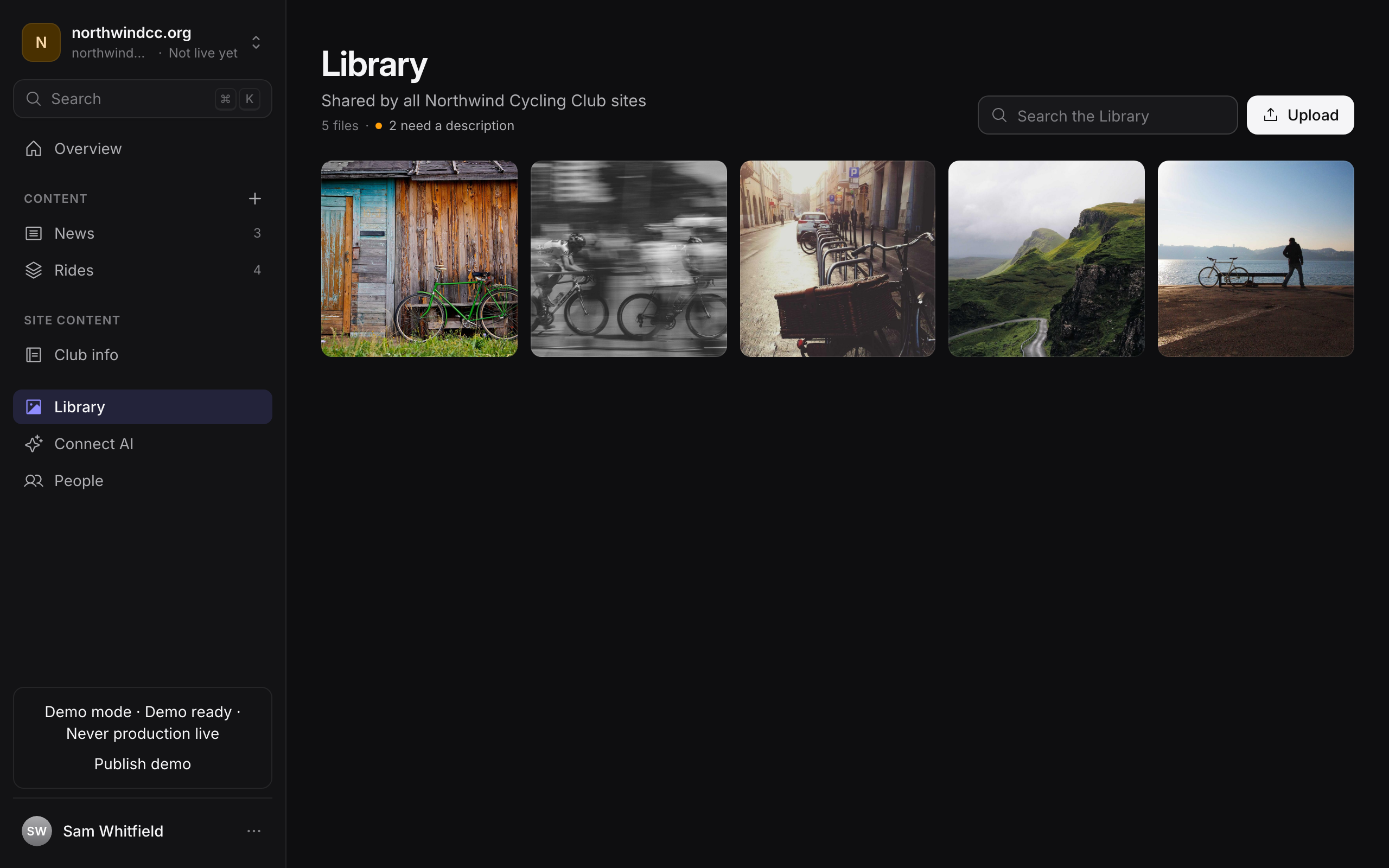
Allowed files and size limits
You can upload these file types:
| Type | Accepted formats |
|---|---|
| Images | JPEG (.jpg, .jpeg), PNG, WebP, GIF |
| Documents |
Each file can be up to 20 MB. Other file types, such as video or Word documents, are rejected. Convert them first, or host them somewhere else and link to them.
Upload files
Editors and owners can upload. Use any of these methods:
- Press Upload on the Library page, then choose one or more files.
- Drag files onto the Library page. A Drop to add to Library overlay appears.
- Open an image field in an entry, press Choose an image, and upload from the picker. The file is added to the Library and selected for the field.
Images pasted into rich text from another website are also added to the Library automatically. See rich text.
Find a file
Use Search the Library to find files by name or description. When some files have no description, the Library shows a count such as "3 need a description". Select it to show only those files. Select Show all files to clear the filter.
Alt text and descriptions
Alt text describes an image for people who cannot see it, and it helps search engines understand the page. Open a file and fill in Description (alt text). Areca saves the text when you leave the field and shows Saved.
Keep the description short and describe what matters in the image's context, for example "Two engineers reviewing a site plan on a laptop". Do not start with "Image of".
You can also have AI suggest alt text. In an entry's SEO panel, Generate with AI proposes alt text for images that have no description. When you apply the suggestions, the alt text is saved to the image in the Library, so every page that uses it benefits. See SEO and AI suggestions.
File details
Open a file to see File details: its Type, Size, Dimensions (for images), when it was Uploaded and who uploaded it. Use Copy link to copy the file's address, or Open to view the file.
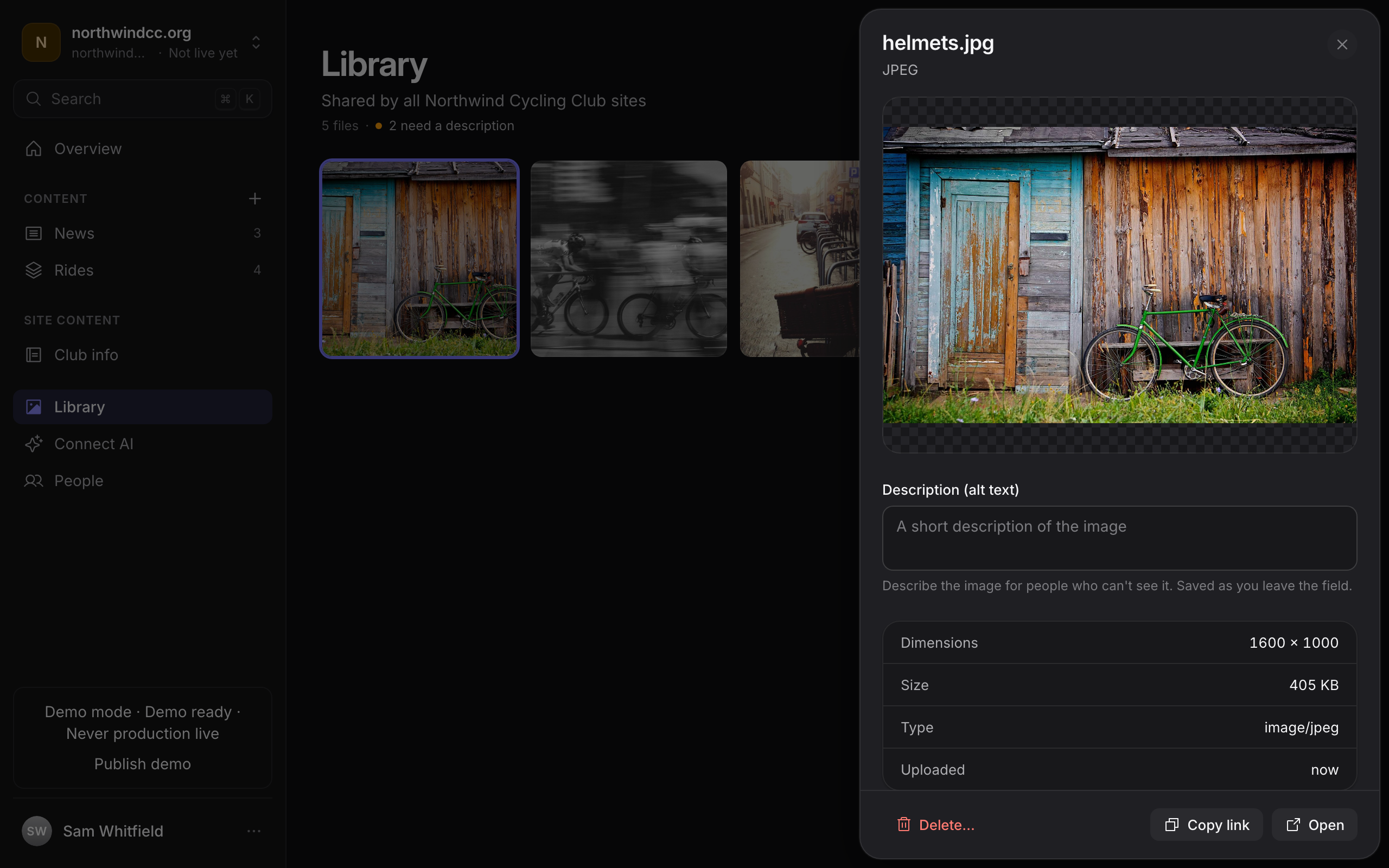
Anyone with the file's link can open it, including drafts. Do not upload confidential or personal documents here unless you are comfortable publishing them.
Replace a file
A file in the Library cannot be swapped for a different file while keeping the same address. To replace an image on a page:
Upload the new file to the Library.
Select it in the image field. Open the entry, then press Replace image on the field and choose the new file.
Delete the old file if you no longer need it. Deletion is only possible when nothing uses it. See the next section.
Only the description of an existing file can be edited in place.
Delete a file
Only owners and agency admins can delete files. Open a file and press Delete…, then confirm with Delete in the Delete this file? dialog. Editors see the button disabled with the reason, "Only owners can delete files from the Library."
Areca blocks deletion while a file is still in use. A file counts as in use if any of these reference it:
- a draft, a ready version or a scheduled version of an entry,
- an earlier revision of an entry,
- any release of the site, including older releases that are no longer live,
- a deleted entry or site. Deleted content keeps its history, so the files it used stay protected.
If a file is in use, Areca tells you how many entries use it. Remove the file from every entry first. Removing it from the current draft is not enough when an older release or revision still uses it.
Why older releases protect files
A live site, and any release you might roll back to, must keep working. Areca keeps each release's images so the site can be restored exactly as it was. See Going live and releases for rollback.
Deleting a file removes it from the Library and queues the stored file for removal. If the storage service is unavailable, the removal is retried later. For how files are kept and cleaned up on the server, see Asset retention.
Related
- SEO and AI suggestions for alt text generated from an entry.
- Going live and releases for how images reach the live site.
- Writing entries for adding images to rich text and image fields.
- Asset retention for how deleted files are cleaned up.
Going live and releases
How Go live publishes your ready changes to the website, what each release status means, and how to recover from a failed release or roll back.
SEO and AI suggestions
Set search, social and structured-data fields for each entry, check the previews, and review AI-generated suggestions before applying them.