 Areca Docs
Branding
Set the CMS name, logo, favicon, theme, accent colour, font and invitation sender name, and see where each one appears.
Branding makes the CMS look like your agency's tool. You set it once for the whole Areca installation, and it applies to everyone who signs in, including client editors and owners. Only agency admins can change it, under Agency › Branding.
Use the Preview on the page to check how the sidebar and a card look in light and dark, before you save. Name, colour and font update as you type. Logo and favicon apply as soon as they are uploaded.
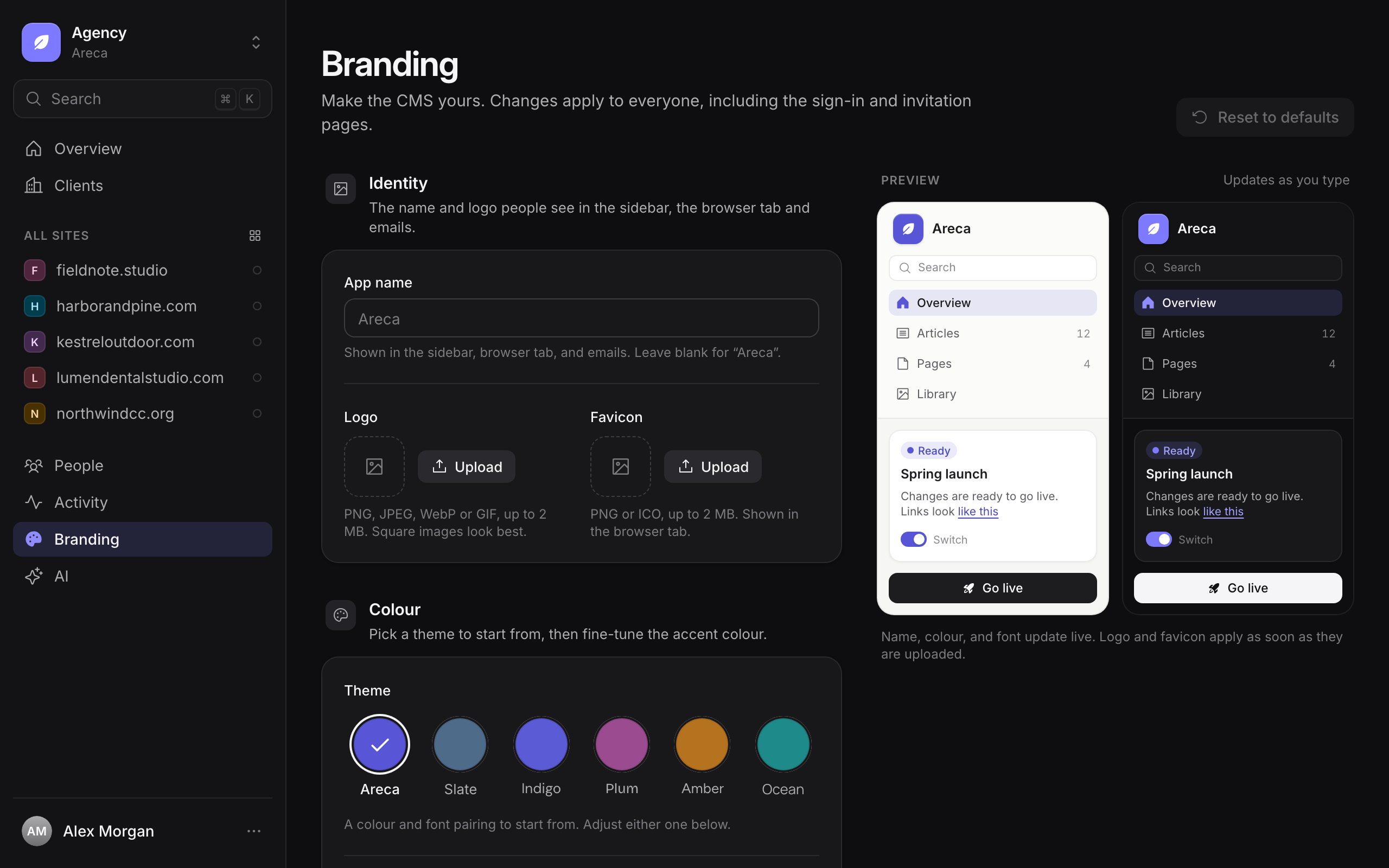
Where branding appears
| Setting | Where people see it |
|---|---|
| App name | The sidebar, the browser tab and invitation emails. |
| Logo | The sidebar. |
| Favicon | The browser tab. |
| Theme and Accent colour | Selected items, links, switches, focus rings and the Ready status, in light and dark mode. |
| Font | All text in the CMS. |
| Sign-in page | The sentence beside the form on the sign-in, invitation and password pages. |
| Sender name | The name shown on invitation emails. |
Branding also applies to the sign-in and invitation pages, so new people see your agency's name and colours before they have an account.
Identity
- App name. The name people see. Leave it blank to use Areca.
- Logo. A PNG, JPEG, WebP or GIF image, up to 2 MB. Square images look best.
- Favicon. A PNG or ICO image, up to 2 MB.
Select Upload to add an image. Once one is set, the button reads Replace. Select Remove to delete the current image.
Colour
Pick a Theme to start from. Each theme sets an accent colour and a font:
| Theme | Accent colour | Font |
|---|---|---|
| Areca | The built-in Areca accent | Inter |
| Slate | Slate blue | Inter |
| Indigo | Indigo | DM Sans |
| Plum | Plum | Bricolage Grotesque |
| Amber | Amber | Figtree |
| Ocean | Teal | Manrope |
After you pick a theme, you can change the Accent colour. Enter a hex value such as #1e90ff, or pick a colour with the swatch. Choose a colour that stays readable on both light and dark backgrounds, and check the preview.
If your installation still has custom colours from the older branding editor, a Custom interface colours notice appears. Those colours stay active until you select Remove custom colours.
Typography
Choose the Font for all text in the CMS. Each option is shown in its own typeface. The list includes Inter, Bricolage Grotesque, DM Sans, Manrope, Figtree, IBM Plex Sans, Source Sans 3, Work Sans, Space Grotesk, Nunito Sans and System default, which uses the font already on each person's device.
Sign-in page
The sign-in, invitation and password pages show a branded panel with your logo, app name and a short sentence. Set that sentence in each interface language:
- English, Nederlands and Türkçe each have their own field. People see the sentence in the language they have chosen.
- Each sentence can be up to 80 characters and must fit on one line.
- Leave a language empty to show Areca's built-in sentence in that language.
The panel follows the Accent colour in light and dark mode, like the rest of the CMS. The Sign-in page preview on the right shows both, so check it after you change the colour.
The Sender name is the display name on invitation emails. If you leave it blank, Areca uses the app name. The email address that messages come from is set by the installation's mail settings, not here. See storage and email.
Save or reset
- Select Save branding to apply your changes.
- Select Reset to defaults to return the name, logo, favicon, colours, font and sign-in sentences to the built-in defaults. This also deletes any uploaded images and stored custom colours. Confirm in the dialog.
Related
- Clients and sites: the work that branding sits alongside.
- People and invitations: invitation emails use your sender name.
- Account: each person's own settings.
Deployments
Connect a client's Dokploy or Cloudflare account, choose a provider and Production or Demo mode for each site, set the project and health check URL, and test the connection.
AI settings
Connect OpenRouter, choose the model, write the agency-wide AI instructions, and understand who can use AI suggestions and how often.