 Areca Docs
Your account
Change your name and password, set your language and appearance, turn on two-factor authentication, sign out, and delete your account.
Your account holds your name and email, how you sign in, and your display preferences. You manage most of it from the account menu and the Account page.
Open your account
Select your name at the bottom of the sidebar to open the account menu. It shows your name and email, and these options:
- Appearance: Light, Dark or Auto.
- Language: English, Nederlands or Türkçe.
- Account and security: opens the Account page.
- Keyboard shortcuts: lists the shortcuts available in the CMS.
- Sign out.
Profile
The Profile section on the Account page shows your Name and Email.
To change your name, select the name field, type the new name, then select Save name or press Enter. Press Escape to go back to the saved name. The new name appears in the account menu straight away.
Your email address can't be changed on this page. If it needs to change, ask your agency admin.
Change your password
The Password section on the Account page is there if you sign in with a password. If you only sign in through Google or Microsoft, there is no password to change, and the section doesn't appear.
Enter your current password. Use the eye button to show what you typed.
Enter the new password, twice. It must be at least 8 characters, and no more than 128. The confirmation must match.
Select Change password. Areca confirms the change.
Changing your password signs out every other device. The browser you changed it in stays signed in. Areca also emails you a notice that your password changed. If you didn't make the change, reset your password straight away with Forgot password? on the sign-in page.
If the current password is wrong, the field says That password is not correct. Nothing changes.
Language
Choose Language in the account menu. Areca supports three interface languages:
- English
- Nederlands (Dutch)
- Türkçe (Turkish)
The language changes the labels, buttons and messages in the CMS. It does not translate the content your team has written. Entries stay in the language they were written in.
Appearance
Choose Appearance in the account menu:
| Option | Effect |
|---|---|
| Light | Always uses the light theme. |
| Dark | Always uses the dark theme. |
| Auto | Follows the theme of your device. |
Notifications
The Notifications section on the Account page lists the notification emails you can get, one group for each client you belong to. Turn each one on or off. Some are required by your client or agency, and show Required by instead of a switch. Agency admins also see Agency alerts.
Account emails, such as password resets and security notices, always send. See notification emails for the full list and how to unsubscribe, and account and sign-in for the email language.
Two-factor authentication
Two-factor authentication adds a second step to sign-in. After your password, Areca asks for a six-digit code from an authenticator app on your phone. Any app that generates time-based codes works, including many password managers.
Turn it on from Account, in the Two-factor authentication section.
Start setup. Press Set up two-factor.
Confirm your password. If you are asked for your password, enter it. If you only sign in through a provider and have no password, leave the field empty.
Add the account to your app. Scan the code with your authenticator app. If you cannot scan it, choose the Secret key and enter it by hand.
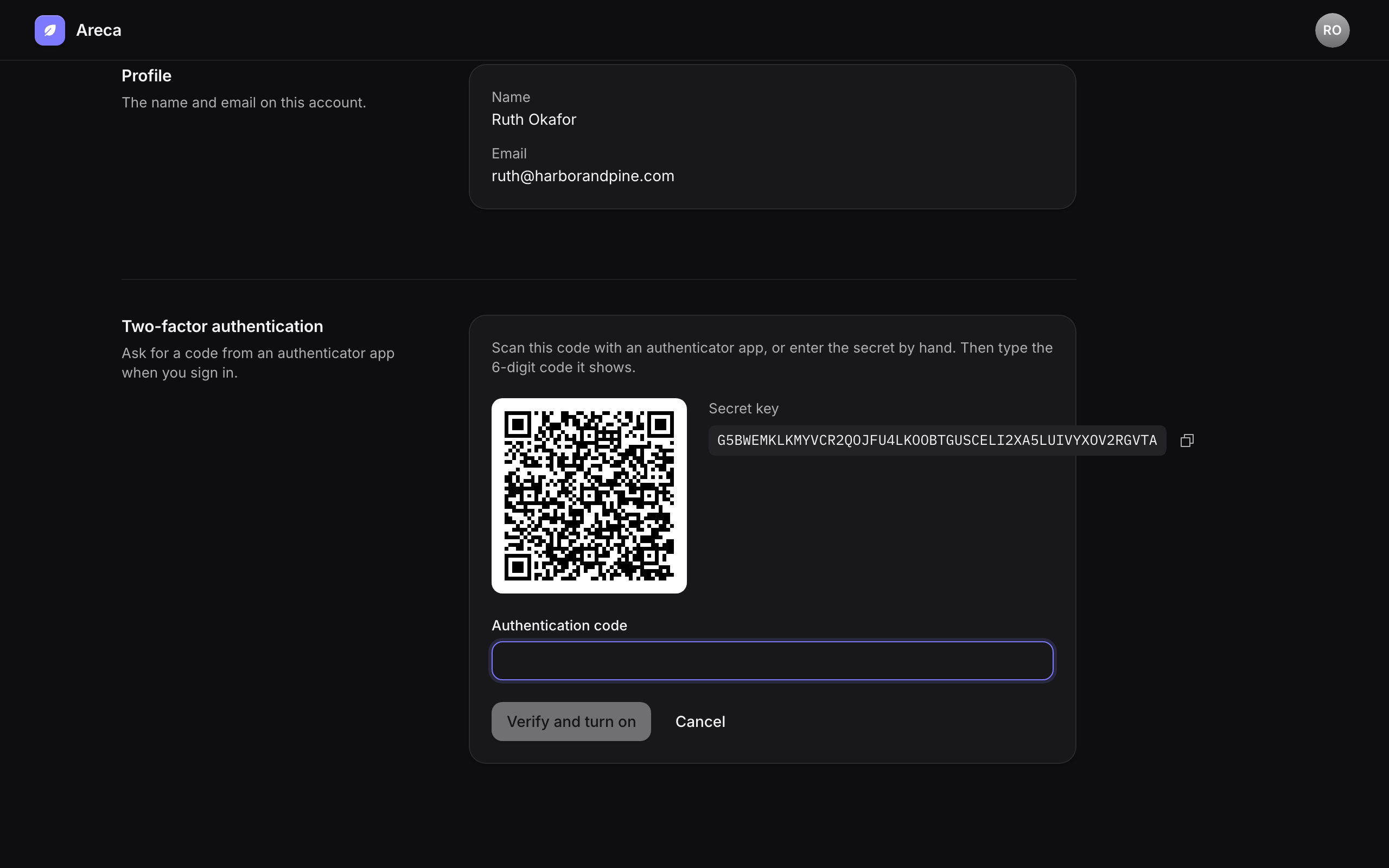
Enter a code. Type the six-digit code your app shows, then press Verify and turn on.
Save your backup codes. Areca shows a set of backup codes once. Copy them and store them somewhere safe, then press I've saved them.
Save your backup codes
Backup codes are shown only once. Each code works one time, and they are the way back in if you lose your phone. Store them outside your phone, for example in a password manager.
Sign in with a code
After you enter your password, Areca asks for the Authentication code. Enter the six-digit code from your app. If you cannot use your app, choose Use a backup code and enter one of your saved codes.
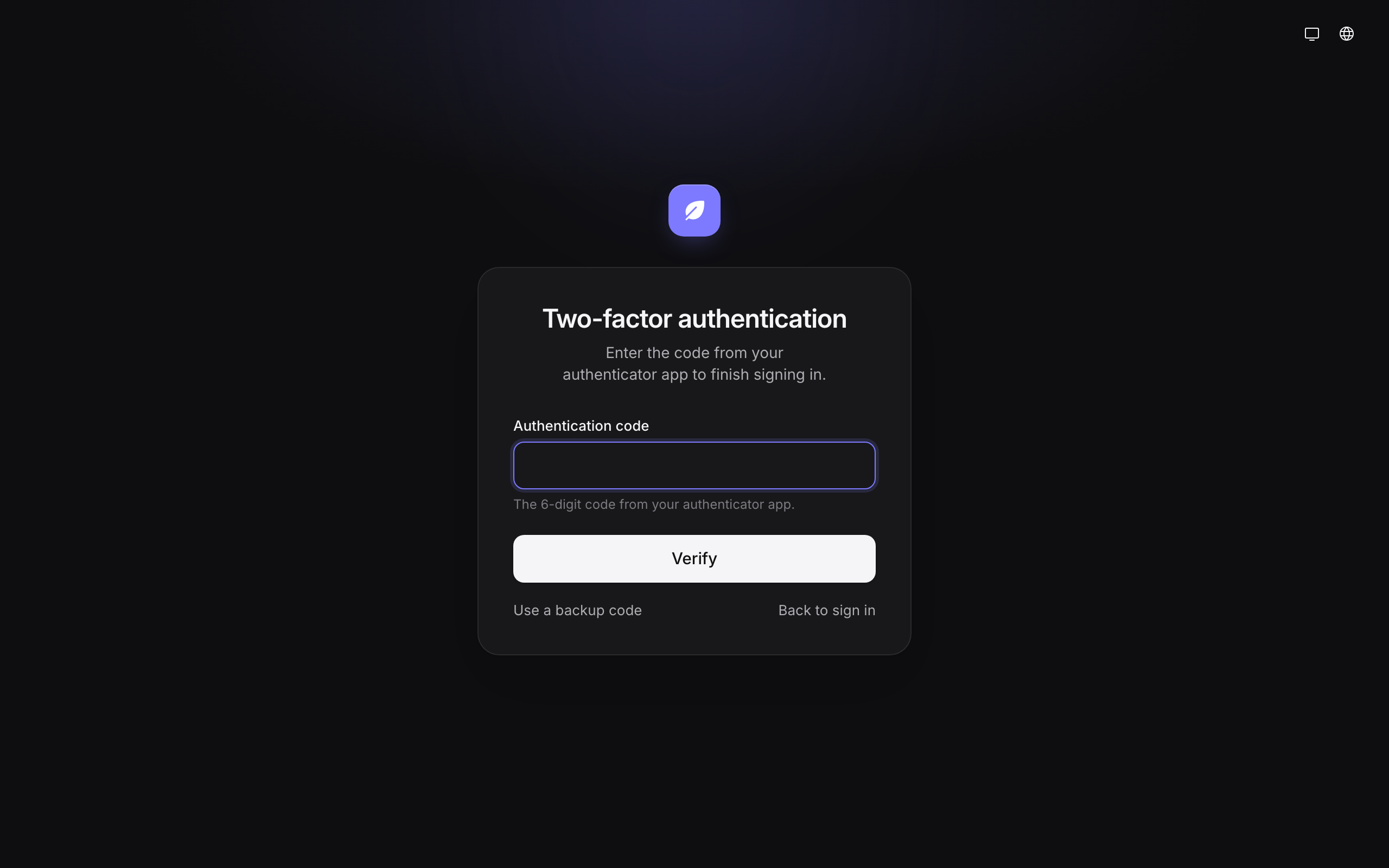
Some sensitive admin actions ask you to confirm with a fresh code, even if you are already signed in. See Two-factor and step-up for when this applies.
Create new backup codes
If you are running low on backup codes, press New backup codes on the Account page and confirm when asked. Save the new codes as before. Earlier codes stop working.
Turn off two-factor authentication
Press Turn off on the Account page and confirm when asked. Agency admins must keep two-factor authentication on. If you are an agency admin and turn it off, Areca sends you back to the Account page until you set it up again.
Agency admins
If you are an agency admin, Areca requires two-factor authentication. Until you set it up, the Account page shows Set up two-factor authentication and the rest of the CMS is unavailable. The Back to workspace button is hidden until setup is complete.
Back to the workspace
On the Account page, select Back to workspace to return to your sites. The button is hidden for agency admins who still need to set up two-factor authentication.
Sign out
Choose Sign out from the account menu. Areca signs you out on this device and shows the sign-in page. Sign out on a shared computer before you leave it.
Delete your account
Deleting your account is permanent. It can't be undone, and it happens straight away, with no waiting period. Scroll to the Danger zone at the bottom of the Account page and select Delete account.
Before you delete
Areca refuses to delete your account in two cases:
- You are the only owner of a client. The page lists those clients, with a People link for each one. Make someone else an owner of each client, then come back to this page.
- You are the last active agency admin. Make another person an agency admin first. The page links to People.
When neither applies, the Delete account button is available.
Confirm it is you
Deleting asks you to confirm in two steps:
Read what happens, then type your email. The first step lists what is removed and what stays. Type your email address to confirm, then select Continue.
Prove it's you. If your account has a password, enter it. If you sign in only with a provider and have two-factor authentication on, enter a code from your authenticator app, or select Use a backup code. If you sign in only with a provider and have no two-factor, there is no second step.
Select Delete account to finish. Areca deletes the account, signs you out and shows the sign-in page with the message Your account was deleted.
What is removed
- Your sign-in, including any provider you use to sign in.
- Your access to every client.
- Your personal AI keys and the AI apps you connected. They stop working.
- Your sessions and your two-factor setup.
What stays
- Content you wrote stays, such as entries, revisions and uploaded files. Where your name was shown as the author, it now shows Deleted user.
- Activity history stays. Changes you made are still listed, shown as made by Deleted user.
Areca emails your address to say the account was deleted. You get this email even if you have turned off other emails.
If an agency admin deletes your account instead, you get the same kind of email, and it says that an admin did it. See managing people for what an admin can do.
Related
- Notification emails: which release and schedule emails you can get.
- Roles and permissions for what your role allows.
- Two-factor and step-up for the two-factor policy and when extra confirmation is needed.
- Troubleshooting if you cannot sign in.
History and activity
Restore an earlier version of an entry from its history, and review who did what across a site with the activity log.
Account and sign-in
Reset a forgotten password, verify your email address, understand a blocked or deleted account, choose the language of account emails, and know which security emails Areca sends you.