 Areca Docs
SEO and AI suggestions
Set search, social and structured-data fields for each entry, check the previews, and review AI-generated suggestions before applying them.
Each entry has its own SEO settings. They control how the page appears in search results, how it looks when shared on social media, and the structured data search engines read. You fill them in the entry editor. When you go live, the values are included in the site's release, and the website uses them to build its pages.
Areca does not promise rankings or indexing. Good titles, accurate descriptions and clear content help, but the search engines decide what to show.
Generate with AI in this panel uses the suggestions that an agency admin sets up in AI settings. To let an AI app you run write entries directly, use Connect AI instead.
Open the SEO panel
Open an entry and expand Details. The SEO & discovery section contains the SEO panel. Changes autosave with the rest of the draft, so you do not need to press a button.
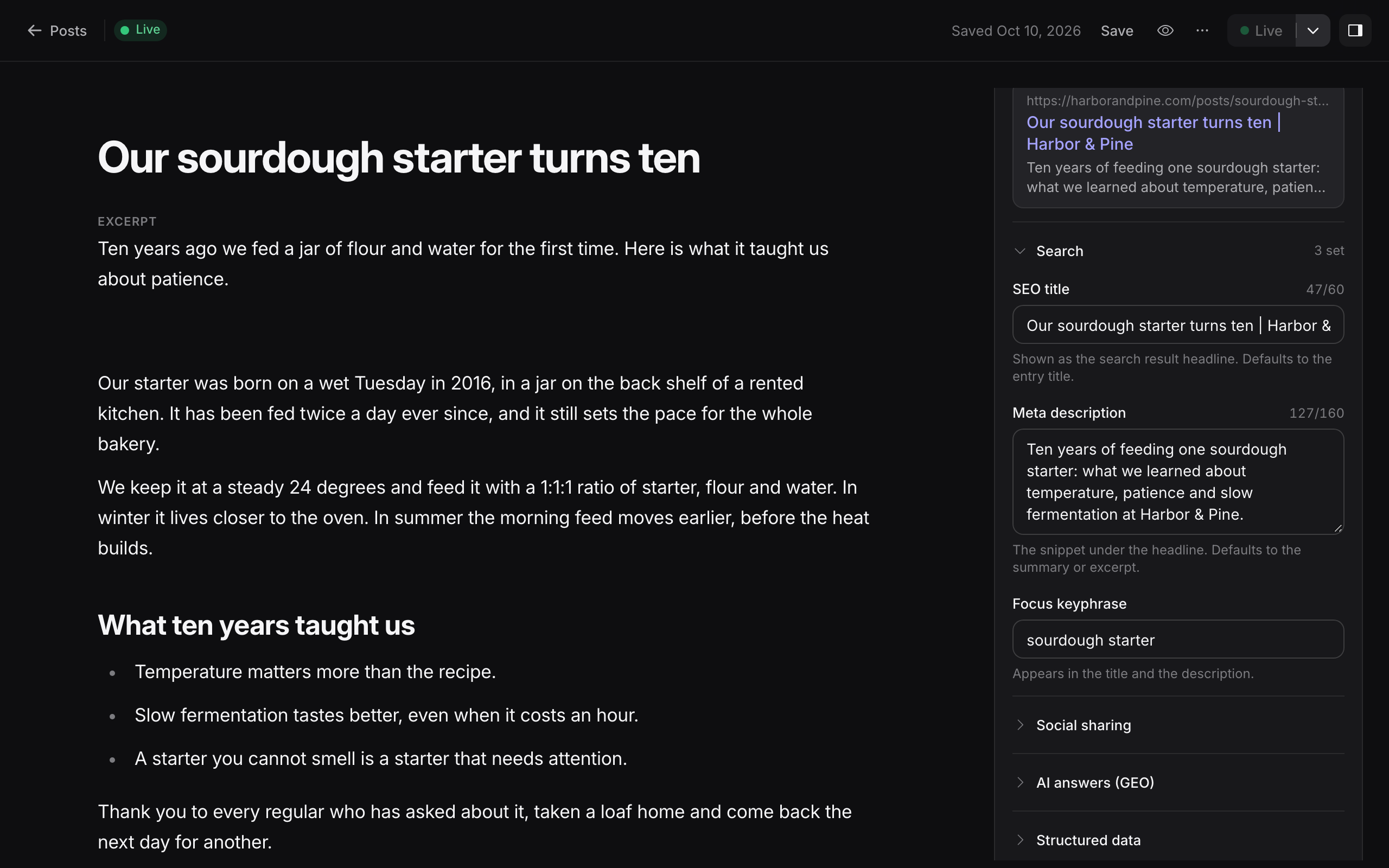
The fields are grouped as Search, Social sharing, AI answers (GEO), Structured data and Indexing & advanced. Each group shows how many of its fields are set.
Check the search preview
At the top of the panel, Search result preview shows the title, address and description that search engines will show for the page. It includes the fallback values, so you see what will appear even when you leave a field empty.
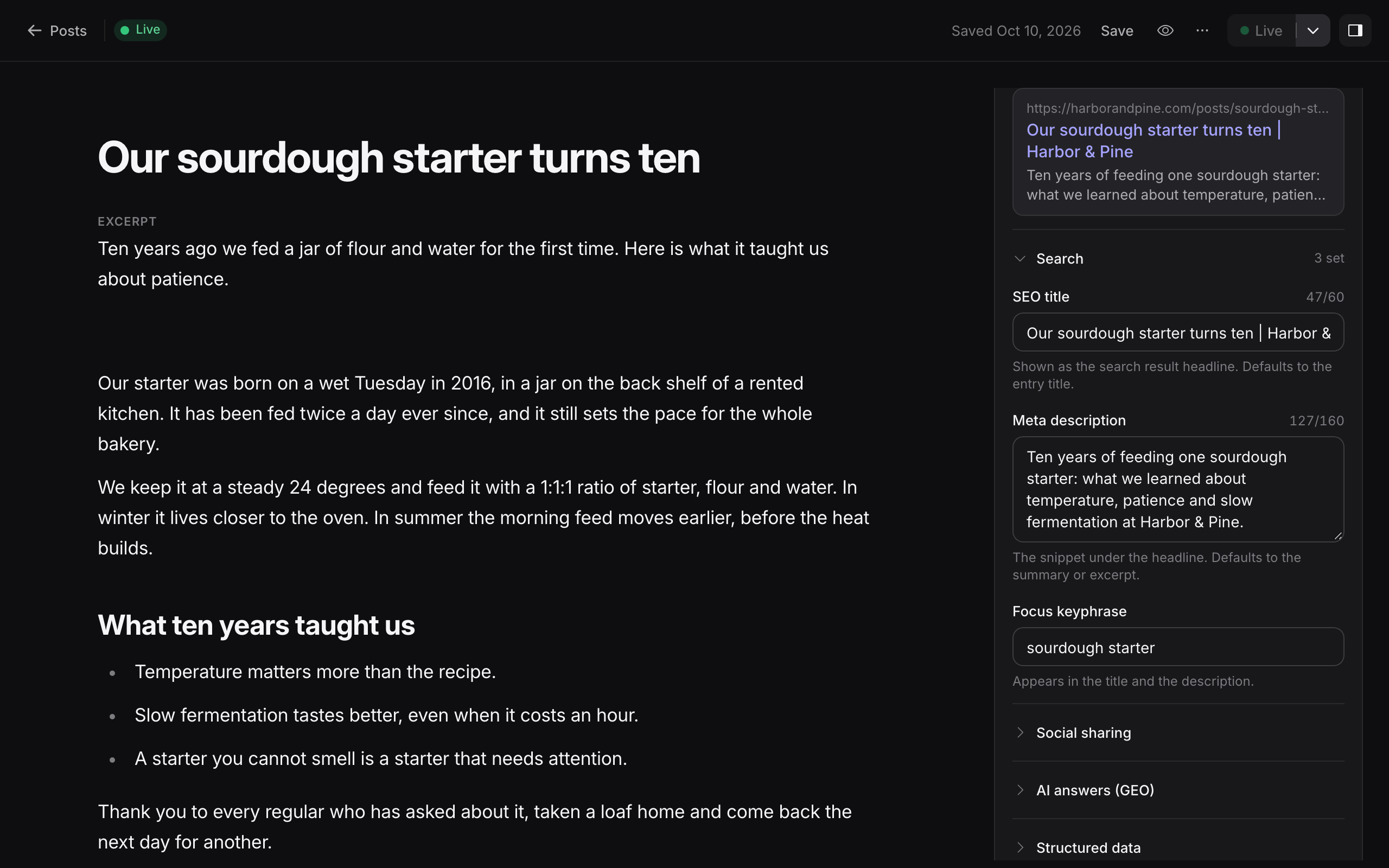
If the preview shows a random sentence from the page, add a description, summary or excerpt.
Fields
Search
| Field | What it does | Limit |
|---|---|---|
| SEO title | The search result headline. Defaults to the entry title. | Target about 60 characters. Maximum 300. |
| Meta description | The snippet under the headline. Defaults to the summary or an excerpt. | Target about 160 characters. Maximum 1,000. |
| Focus keyphrase | The search phrase this page should rank for. The panel checks that it appears in both the title and the description. | Maximum 200. |
The character targets are guidance. The panel shows a counter, but it does not stop you from going over.
Social sharing
| Field | What it does |
|---|---|
| Social title | The title shown when the page is shared. Defaults to the SEO title. |
| Social description | The description shown when the page is shared. Defaults to the meta description. |
| Social image | The image shown when the page is shared. Use 1200 × 630 pixels, which works on most platforms. Defaults to the first image field of the entry. |
| X / Twitter card | Summary or Large image. |
AI answers (GEO)
These fields give AI answer engines short, factual content. Show the same information on the page as well, because structured data should match what readers see.
| Field | What it does | Limit |
|---|---|---|
| TL;DR summary | Two or three sentences that answer what the page is about. | Maximum 2,000 characters. |
| Key takeaways | Short points that summarise the page. | Up to 12, each up to 500 characters. |
| FAQ | Questions the page answers, with an answer for each. The FAQ is also published as FAQPage structured data. | Up to 20 questions. Questions up to 500 characters, answers up to 3,000. |
Structured data
| Field | What it does | Limit |
|---|---|---|
| Schema type | The type of page. Use BlogPosting for blogs, NewsArticle for news and Article for other editorial pages. | One of the listed types. |
| Topics & entities | What the page is about. Add a Wikipedia or Wikidata link to remove ambiguity. | Up to 12 topics. Names up to 200 characters. |
| Author | The author's Name, Profile URL and Short bio and credentials. Leave it empty to publish under the site only. | Name up to 200 characters. Bio up to 1,000. |
| Extra JSON-LD | Custom structured data added next to the generated data. Enter a JSON object or an array of objects. | Up to 20,000 characters. |
Use Extra JSON-LD only when you know the schema. Invalid data can be ignored by search engines.
Indexing and advanced
| Field | What it does |
|---|---|
| Canonical URL | The main address of the page. Only set it when the same content is also available at another address. If you leave it empty, Areca builds the address from the site's production URL, the content type's route and the entry's slug. |
| Hide from search engines | Adds noindex, which asks search engines to leave the page out of their results. The page can still be opened by link. |
| Don't follow links | Adds nofollow to every link on the page. |
Check Hide from search engines
A page with Hide from search engines turned on is kept out of search results after it goes live. Turn it off before you release a page that should be found.
Generate suggestions with AI
AI can draft SEO fields and image alt text for you. Editors, owners and agency admins can use it when AI is turned on for the workspace. If the Generate with AI button does not appear, AI is not configured yet.
An agency admin must set up AI first:
- Agency › AI sets the provider, the model and the shared instructions.
- Site Settings › AI adds instructions for one site.
See AI settings for setup. Generation is limited to 30 requests per hour for each user.
Review the suggestions
Press Generate with AI in the SEO panel. Areca reads the entry as it is in the editor, including unsaved changes. The dialog shows the model it used and whether it sent text only or text with images.
The dialog lists only the fields that would change:
- SEO title, meta description and focus keyphrase
- social title and social description
- TL;DR summary and key takeaways
- FAQ
- schema type and topics
- alt text for images that do not have a description
Each suggestion shows the current value and the proposed value. Changes and alt text are selected by default. Use Select all or Select none to change the selection, or clear individual items.
Press Apply to write the selected suggestions into the current draft. Alt text is saved to the image in the Library. Press Cancel to discard the suggestions.
Generating suggestions does not save, mark ready or publish anything. Applying them changes the draft only. The new SEO values reach the website when the entry is ready and the site goes live.
The AI does not suggest canonical URLs, robots settings, the social image, the Twitter card, the author or extra JSON-LD. Set those yourself.
What the AI receives
To make suggestions, Areca sends the selected model:
- the site and page address, the content type and the entry title,
- the other filled-in fields and the current SEO values,
- the body text of the entry, up to a size limit,
- details of up to four images that the entry uses.
If the model supports images, Areca also sends the images. A text-only model receives no image content.
Do not generate suggestions for content that is confidential or contains personal information, unless your agency has approved that use with its AI provider. See AI data handling.
AI can make mistakes. Check every suggestion against the article before you apply it. You are responsible for what goes live.
What ships in a release
For each entry, a release includes the resolved SEO values, not just the raw fields:
- Title uses the SEO title, or the entry title when it is empty.
- Description uses the meta description, then the summary, then an excerpt of the body.
- Canonical URL uses your value, or is built from the production URL, the route and the slug.
- Robots includes the noindex and nofollow settings.
- Social values use the social fields, falling back to the search values. The social image falls back to the first image field.
- The summary, key takeaways, FAQ, topics, author and structured data are included as entered.
The website must render these values in the page's <head>. Areca provides them, but the site's own templates display them. Preview pages are always marked noindex, so previews stay out of search engines.
Editorial checks
- Give each public page a distinct, accurate title and a useful description.
- Check that the slug and canonical URL match the address the page will have.
- Describe images in their context, and keep alt text short.
- Keep FAQ answers and summaries consistent with the page text.
- Review the search preview, then mark the entry ready and go live.
Related
- Writing entries for the rest of the entry editor.
- Media library for alt text and image files.
- AI settings for turning AI on for a workspace.
- Going live and releases for publishing the changes.
- SEO for developers for how the website renders these values.
Media library
Upload images and PDFs to the shared Library, write alt text, replace or delete files, and understand why some files cannot be deleted.
Connect AI
Connect ChatGPT, Claude, Claude Code, Cursor, VS Code or another AI app to one of your sites with one connector URL and a browser sign-in. What the consent screen asks, how to manage connected apps, and what to do when a connection fails.