 Areca Docs
Site settings
A tour of the five Settings tabs for a site, what each one controls, and who can change them.
Each site has its own Settings page with six tabs: General, Languages, Deployment, Developer, AI and Content. Settings control how a site is named, where it is deployed, how its website project connects, how AI writes suggestions for it, and which content types it has.
Only agency admins see Settings in the sidebar. Client owners and editors can't open it, even though they can see the site. The General, Deployment and AI tabs show a bar with Save and Discard when you have unsaved changes. The Developer and Content tabs act as soon as you select a button or switch.
General
Use this tab for the basic identity of the site.
| Setting | What it does |
|---|---|
| Name | The site name shown in the sidebar and the site picker. |
| Production URL | The address where the live site is. Previews open here too, unless a preview URL is set. |
| Preview URL | Optional, and only agency admins can change it. The address that draft previews and the visual editor load from, such as a staging site or http://localhost:3000. Leave it empty to use the production URL. |
| Danger zone | Contains Delete site…, which permanently removes the site. See clients and sites. |
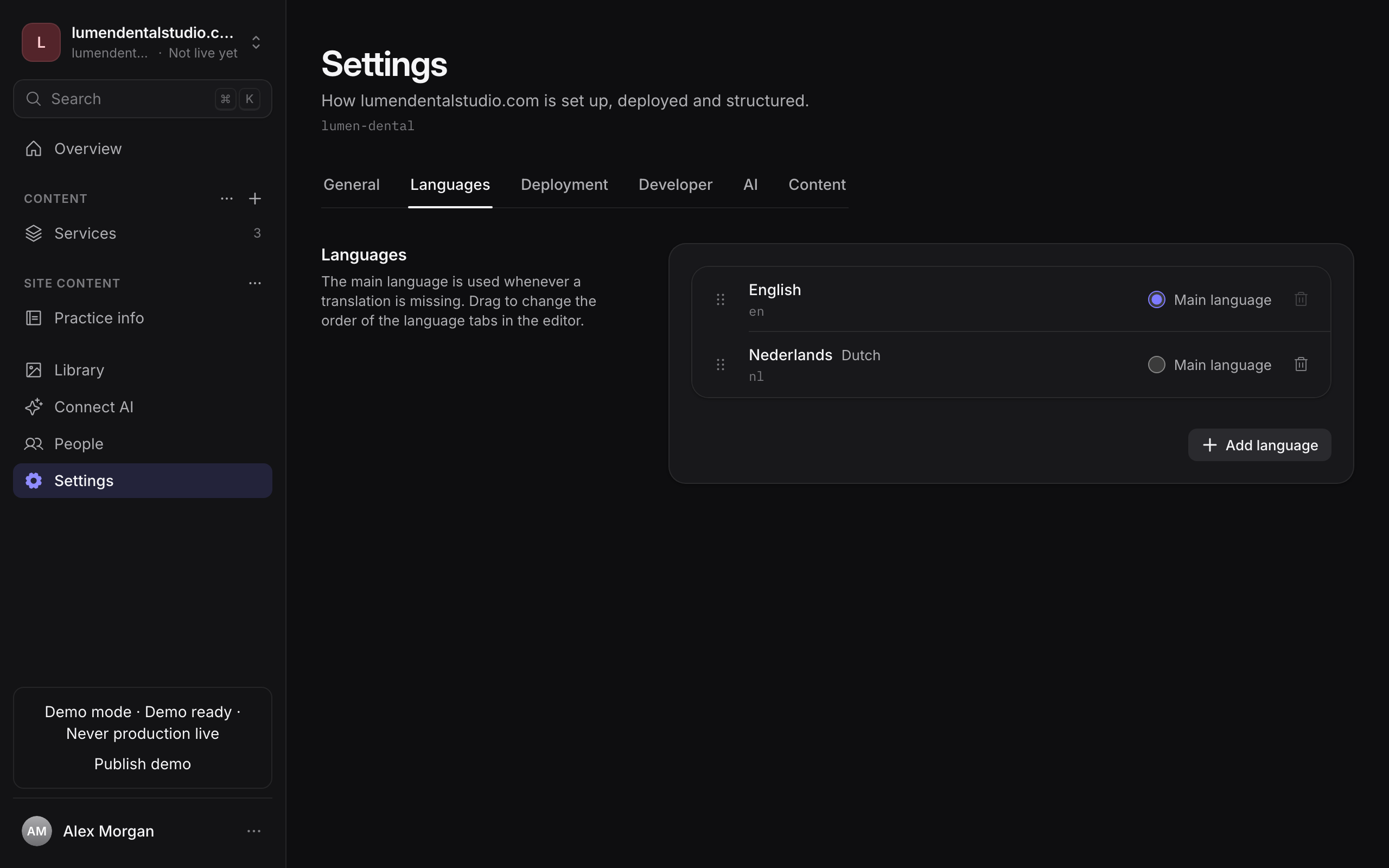
Languages
Use this tab to add the site's content languages and choose the main language. The main language is the fallback: visitors who don't match another language see it, and an entry without a translation shows it. A push of the site's project can set the languages too, under the same rules. Read languages for the setup, required languages, translatable fields and what happens when the main language changes.
Deployment
Use this tab to decide whether a site goes live through a deployment target or only as a marked release. The tab sets the Publishing mode, chooses the Provider (Dokploy or Cloudflare), connects the site to a Dokploy application or a Cloudflare project, and sets the Health check URL.
- Production deploys each release to the site's Dokploy application or Cloudflare project, and checks its health before the release counts as live. Production requires a target and a Health check URL. The Health check URL field is required in Production mode.
- Demo keeps the release in Areca without a production deployment. No deploy or health check runs. Demo releases are labelled and never count as live.
While a release is queued, building, validating or deploying, or its outcome is unknown, the publishing mode, provider and target are locked, and the server refuses changes to them.
The full steps are in deployments.
Developer
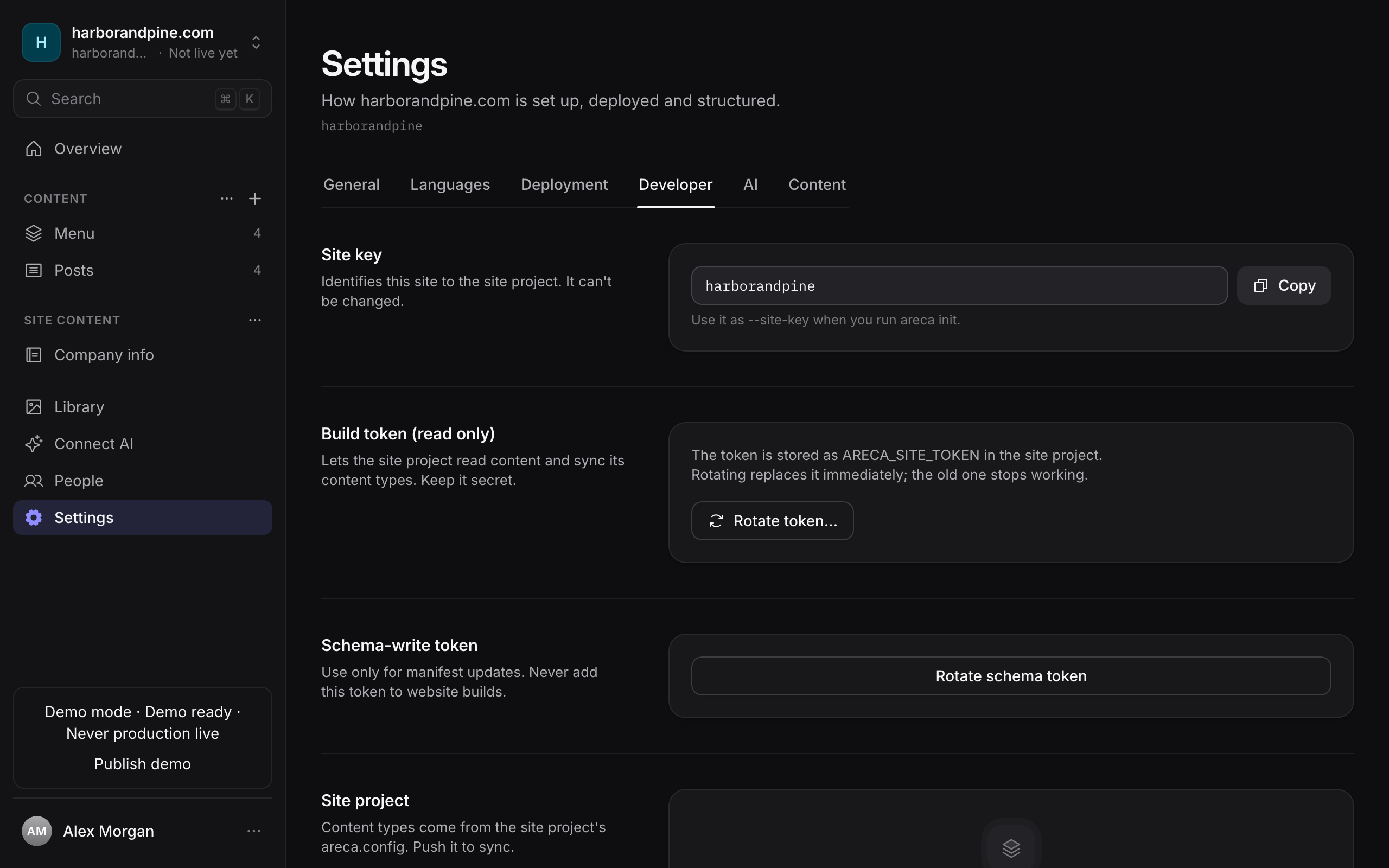
Use this tab to connect the website project to Areca.
| Card | What it shows |
|---|---|
| Site key | The short name that identifies the site. Copy it when you run areca init. It can't be changed. |
| Site token | The token the website project uses to read content. Use Rotate token… to replace it. The old token stops working straight away. |
| Schema-write token | The token used only to push content types. Use Rotate schema token to replace it. Never add it to website builds. |
| Site project | The content types that the project last pushed, and a quick-start list of commands to connect a project. |
Tokens are shown once, when they are created or rotated. The steps are in clients and sites, and the security details are in tokens.
AI
Use this tab to add instructions that apply to this site only. Areca adds them to the agency-wide AI instructions when an editor asks for SEO suggestions on this site. The text can be up to 20,000 characters.
Describe the brand voice, the audience, terms to use or avoid, and the language. See AI settings for the agency-wide setup, and AI data handling for what is sent to the AI provider.
Content
Use this tab to see the site's content types and turn them on or off. A content type is the kind of thing editors write, such as Articles or Pages.
- The switch on each row turns a content type on or off. A content type that is off is hidden from writers, and its entries don't go live.
- Select a row to open its fields and route, and change them there.
- New content type creates a content type in the CMS.
The content types usually come from the website project. Read content types before you edit them here, so you know which one wins.
Related
- Clients and sites: create sites, copy the site key and rotate tokens.
- Deployments: connect a site to Dokploy or Cloudflare.
- Content types: how content types are defined and kept in sync.
- AI settings: the agency-wide OpenRouter connection.
Clients and sites
Create clients and sites, understand the site key and site token, rotate a token, and delete clients and sites.
Development environments
Try content and code changes on a copy of a live client site, then push the reviewed changes to production. The agency workflow, the local token steps, the push screen, and how AI apps work on a development environment.