 Areca Docs
History and activity
Restore an earlier version of an entry from its history, and review who did what across a site with the activity log.
Areca keeps two records of past changes. History is the list of saves and status changes for a single entry, and it lets you go back to an earlier version. Activity is the log of actions across a site or client, such as entries marked ready and releases going live.
Entry history
Every entry keeps its history. Open an entry, expand Details, and find the History section. The history starts with the first save.
Each item shows one change. These are the kinds of items you will see:
| Item | When it appears |
|---|---|
| Created | The entry was first created. |
| Edited | The content was saved. |
| Marked as ready | An owner marked the entry ready. |
| Scheduled | The entry was scheduled to go live at a set time. |
| Schedule cancelled | The entry's schedule was cancelled. |
| Moved back to draft | The entry was no longer ready. |
| Archived | The entry was archived. |
| Restored an earlier version | A previous version was restored into the draft. |
Areca saves a revision each time the entry is saved, which can be often. To keep the list readable, saves made by the same person within a short time are grouped into one item labelled Edited · N saves. Select that item to expand it. Select Show every save to show all of them, and Hide saves to collapse them again.
Areca keeps every revision for as long as the entry exists, with one exception. Autosave revisions are removed after 90 days, except milestone revisions and the newest revision of each entry. Deleted entries keep their history as well.
History is not a backup of the website
Restoring a revision changes the draft only. Nothing changes on the live website until you mark the entry ready and go live.
Restore an earlier version
Owners and agency admins can restore a revision. Editors can see the history, but cannot restore a revision.
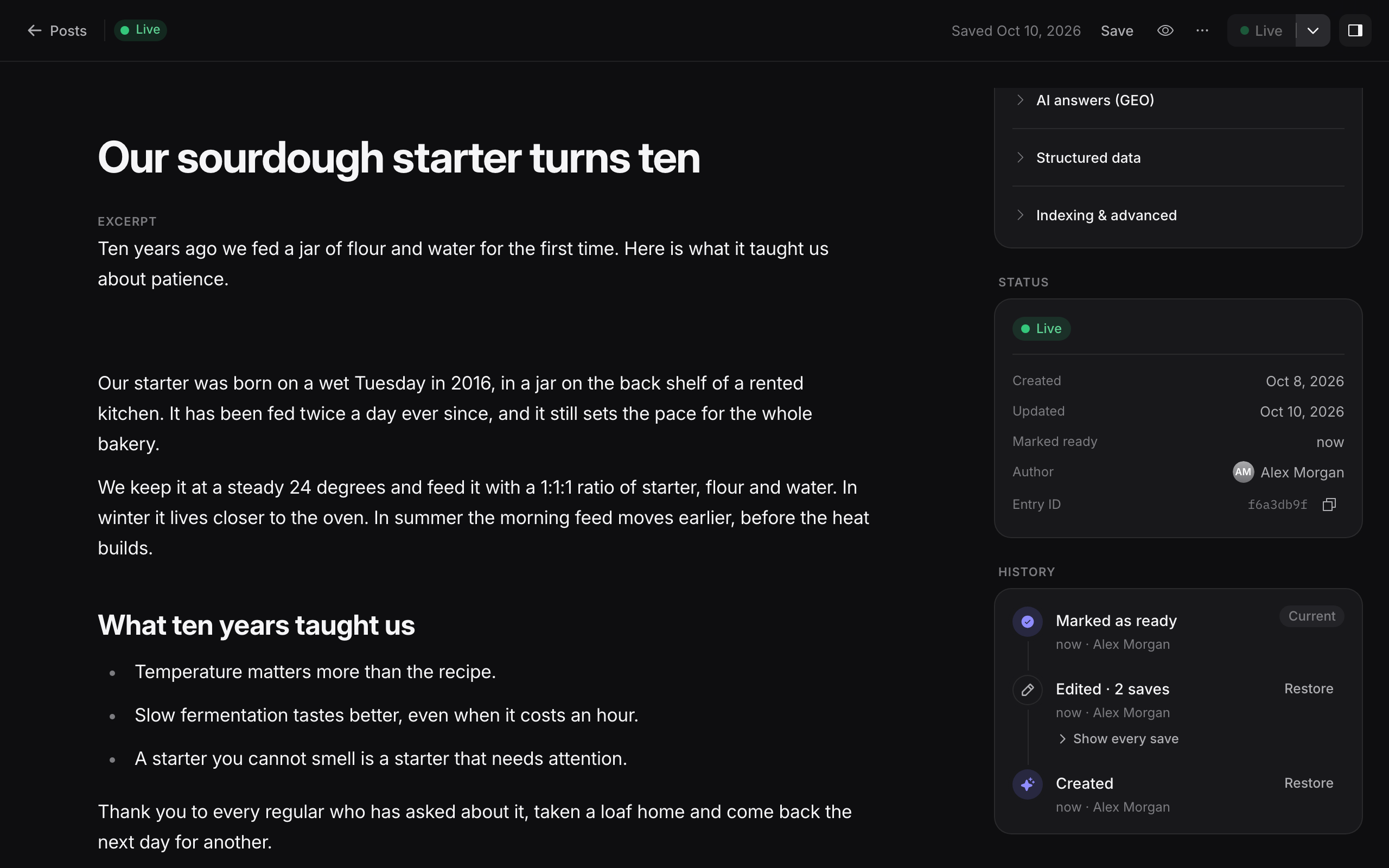
Find the revision. Open the entry, expand Details, and select the item you want in History. Use Show every save if you need an exact save.
Choose Restore. Press Restore on that revision.
Confirm. In the Restore this revision? dialog, read the note and press Restore. The dialog says the current draft is replaced with this revision, and that your current draft is kept as a revision, so you can go back.
After the restore, the editor shows Revision restored. Check the content, then mark the entry ready and go live if it should be on the website.
If you restore the wrong revision, open history again and restore the revision you had before. Your previous draft is also in history.
Activity log
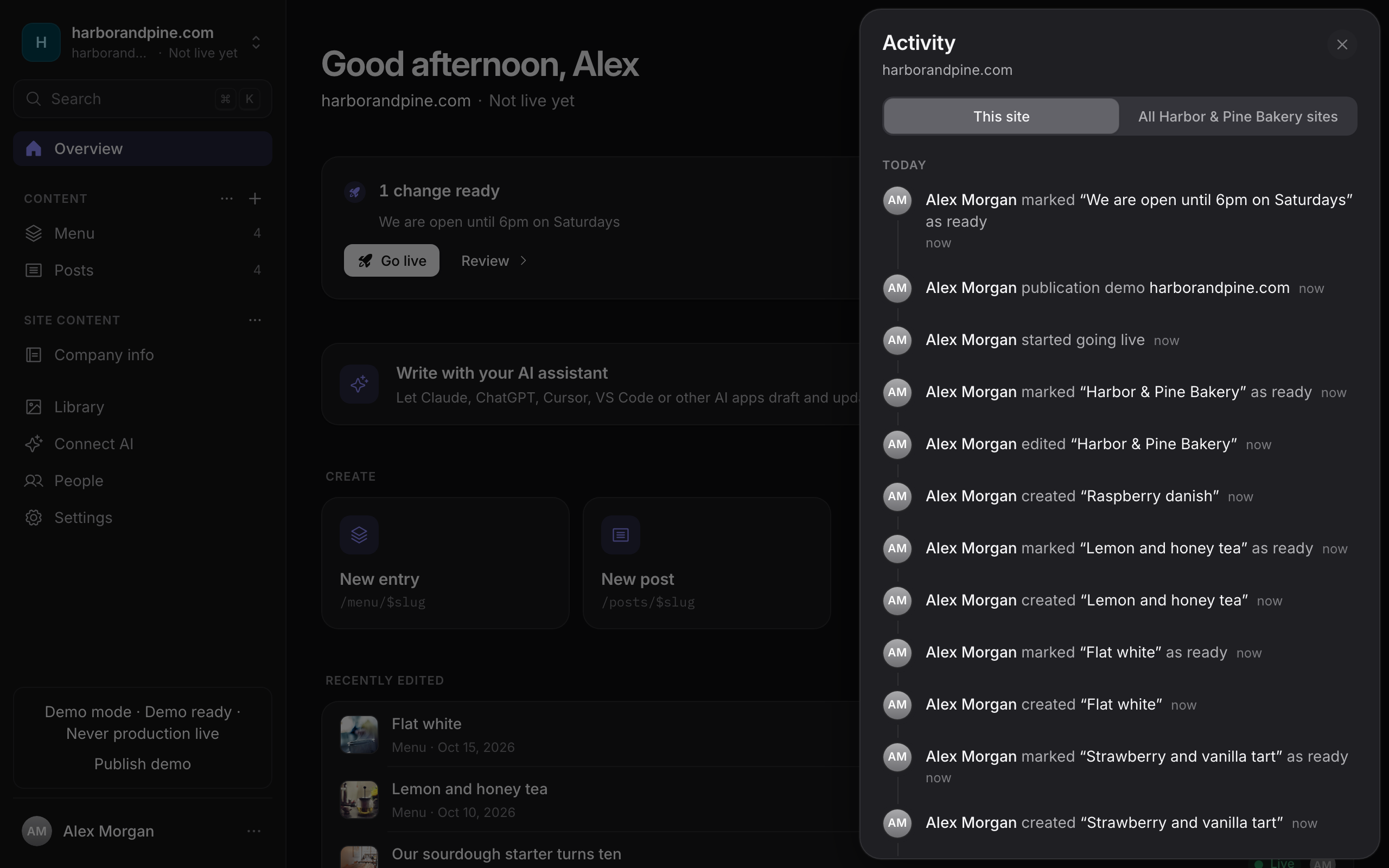
The activity log records actions that change the site or the client. Read it to answer questions such as "who marked this page ready?" or "why did the last release fail?"
Who can see the log
| Where | Who can see it |
|---|---|
| Activity for a site, from the sidebar or the Overview | Owners and agency admins. |
| Agency › Activity, for all clients or one client | Agency admins. |
Editors do not see the activity log. They can still see the history of entries they edit.
What is recorded
Each entry in the log is a sentence describing the action, with the person who did it. Automatic actions show System or "Started automatically". The log includes:
- Entries: created, edited, marked ready, moved back to draft, scheduled, schedule cancelled, archived, deleted and restored to an earlier version.
- Releases: going live started, went live and failed to go live, and an earlier version of the site restored. A scheduled change that could not go live is also recorded.
- Content types: saved and deleted.
- Site: settings changed, site created or deleted, and a new site token made.
- People: invitations sent, sent again, accepted or cancelled, members added or removed, and roles changed.
- Clients: created, updated or deleted, and deployment connections changed. Agency admins also see access changes, branding changes and AI settings changes.
Use the Show more button at the bottom of the list to load older entries. On the agency Activity page, use Show activity for to show one client, or all clients.
The log is for review
Activity shows what happened. It does not show the content of each change. Use the entry's history to see what changed in the text.
Related
- Writing entries for saving and editing entries.
- Statuses and review for what ready, live and scheduled mean.
- Going live and releases for release history and rollback.
- Roles and permissions for what each role can do.
Connect AI
Connect ChatGPT, Claude, Claude Code, Cursor, VS Code or another AI app to one of your sites with one connector URL and a browser sign-in. What the consent screen asks, how to manage connected apps, and what to do when a connection fails.
Your account
Change your name and password, set your language and appearance, turn on two-factor authentication, sign out, and delete your account.