 Areca Docs
People and invitations
Invite people to a client, choose Owner or Editor, resend or revoke invitations, change roles, and remove people.
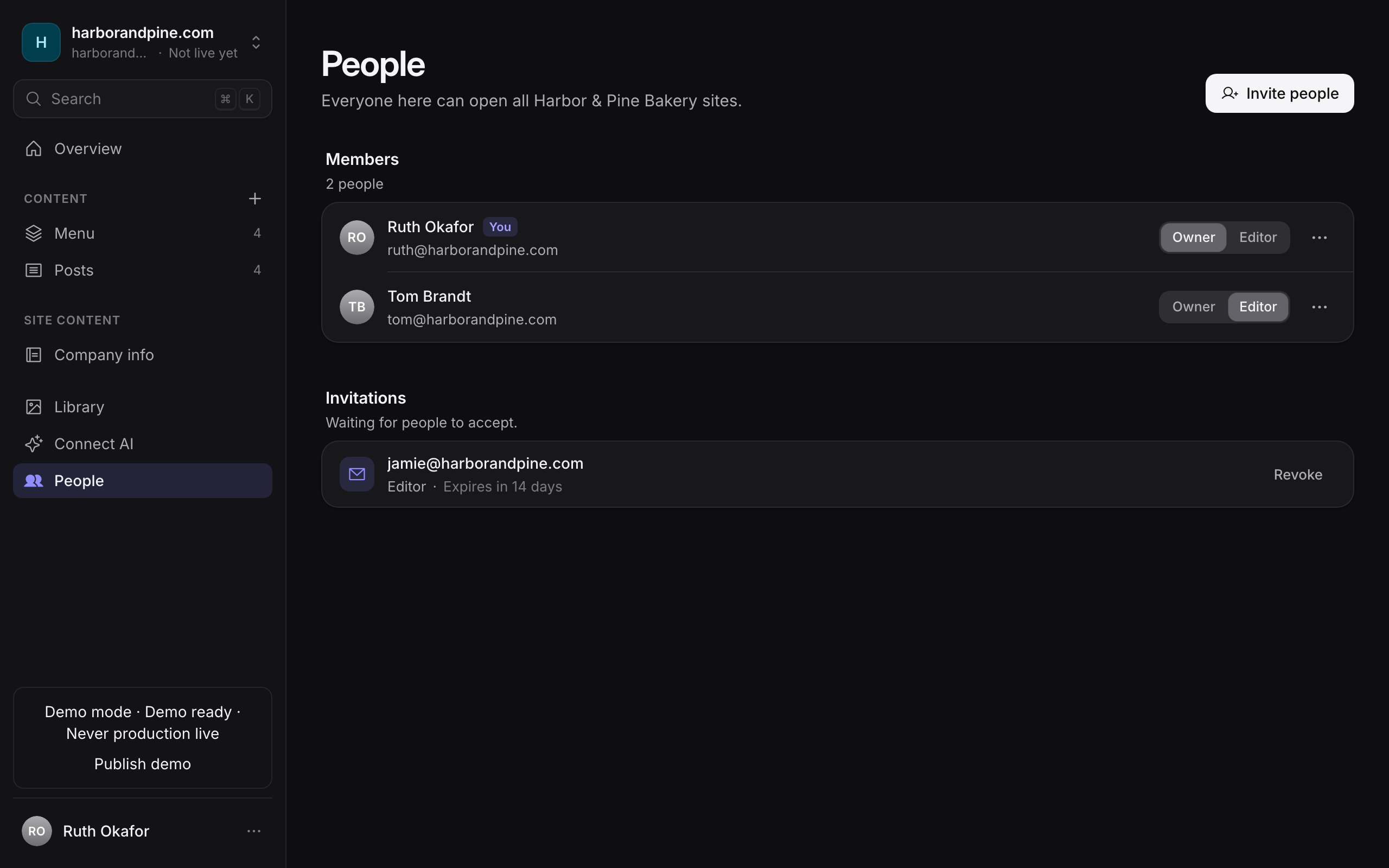
People get access to a client, not to individual sites. Everyone who is a member of a client can open all of that client's sites. You invite and manage people from the client's People list, and agency admins can also see everyone across the agency.
Owners and agency admins manage people. Editors don't see the People list.
Where to find people
- On a site: select People in the site's sidebar. It shows the members of the site's client.
- On a client: open the client in the Agency workspace, then select the People tab.
- Across the agency: in the Agency workspace, select People to see every account, and who has agency access.
Both views list the members of the same client.
Roles
Each member of a client has one of two roles. The role applies to every site of that client.
| Role | What it allows |
|---|---|
| Owner | Everything an editor can do, plus make changes live and manage people. |
| Editor | Write and edit drafts. |
Agency admins have agency-wide access in addition to these roles. For the full list of what each role can do, see roles and permissions.
Invite people
Open People. Select Invite people.
Enter the email addresses. Separate several addresses with commas. Areca sends one invitation to each.
Choose the role. Under They'll join as, select Owner or Editor.
Select the send button. It shows how many invitations it will send. Areca then reports the result for each address.
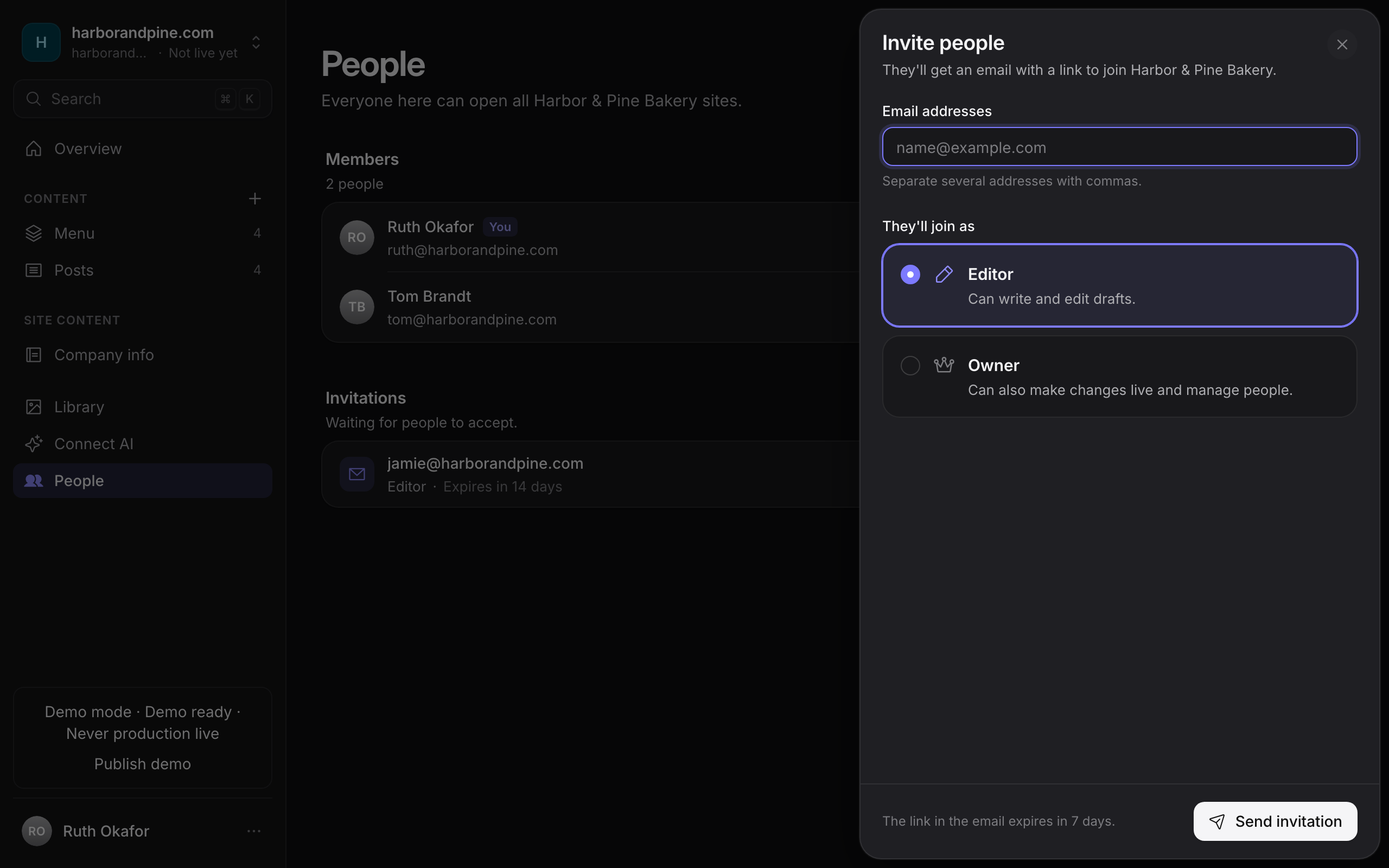
Each invitation email contains a link to join the client. The link expires 7 days after it is created.
Areca queues each invitation email and tries to send it straight away. If the mail server doesn't accept it, Areca tries again about 1 minute and then about 5 minutes later. If every try fails, the invitation shows Email not delivered in the pending list, with the reason in plain language, such as the server rejecting the password. The invitation is kept. Fix the problem, then select Send again. See agency mail for the messages, and storage and email for how sending works.
If your installation has no mail server set up, the invitation is still created. Use Regenerate link on its row to get a link to share another way.
Areca won't create a second invitation for an address that already has a pending one, or invite someone who is already a member. Use Send again for a pending invitation instead.
Manage pending invitations
The Invitations section lists people who haven't accepted yet. Each row shows when the invitation expires, or Expired when the time has passed.
Areca stores only a hash of each invitation link, so it cannot show or copy an existing link again.
- Regenerate link creates a new link and shows it once, with Copy link, so you can send it another way. The previous link stops working. It works whether or not the email was delivered.
- Send again sends a new email with a fresh link and a new 7-day expiry. The previous link stops working.
- Revoke cancels the invitation. Its link stops working straight away. You can invite the same address again later.
Areca deletes an invitation that was never accepted 30 days after it expired. Until then, an expired invitation shows Expired and its link does not work.
Change a member's role
In the Members list, select Owner or Editor on the person's row. The change takes effect straight away.
A client must always have at least one owner. Areca won't let you demote or remove the last owner, so if you are the last owner, add another owner before you change your own role.
Remove a member
Select the More actions menu on the person's row, then Remove from the client's name. Confirm in the dialog.
The person loses access to the client and all of its sites. Their connected AI apps and personal AI keys for the client stop working at once, and any pending notification emails for the client are dropped. You can invite them again later.
Send a password reset link
Agency admins can send a password reset link to a person who has forgotten their password. Open Agency › People and select Send reset link on the person's row (on a phone, the key icon). Confirm in the dialog. You can't send one to yourself; use Forgot password? on the sign-in page instead.
The person gets the same reset email they would get by asking for one themselves. The link works for 1 hour, and only once. When they reset the password, they are signed out everywhere. You don't see the link. It goes only to the person's email.
If the person signs in only with Microsoft or Google, they get an email that says how to sign in instead. Areca shows a message about the result. If mail isn't set up, Areca shows the reason, and no email is sent.
Agency admins
Agency admins are different from client owners. An agency admin can manage every client, site and person, and can change content types, deployments, branding and AI settings. To grant or remove agency access, open Agency › People and change the person's agency admin access from there.
Agency admins must use two-factor authentication, and some actions ask for a fresh authenticator code. See two-factor and step-up.
Related
- Managing people: for agency admins. Find people across clients, add them to several at once, block, delete, reset two-factor and sign out everywhere.
- Roles and permissions: what each role can do.
- Clients and sites: create the client that people join.
- History and activity: see who invited, changed or removed people.
Content types
How content types are defined by the website project and edited in the CMS, what happens when the two disagree, and how to view a site's content schema.
Managing people
For agency admins. Find people across the agency, add them to several clients at once, change their roles, block or unblock them, sign them out everywhere, reset two-factor, and delete them.