 Areca Docs
Visual editor
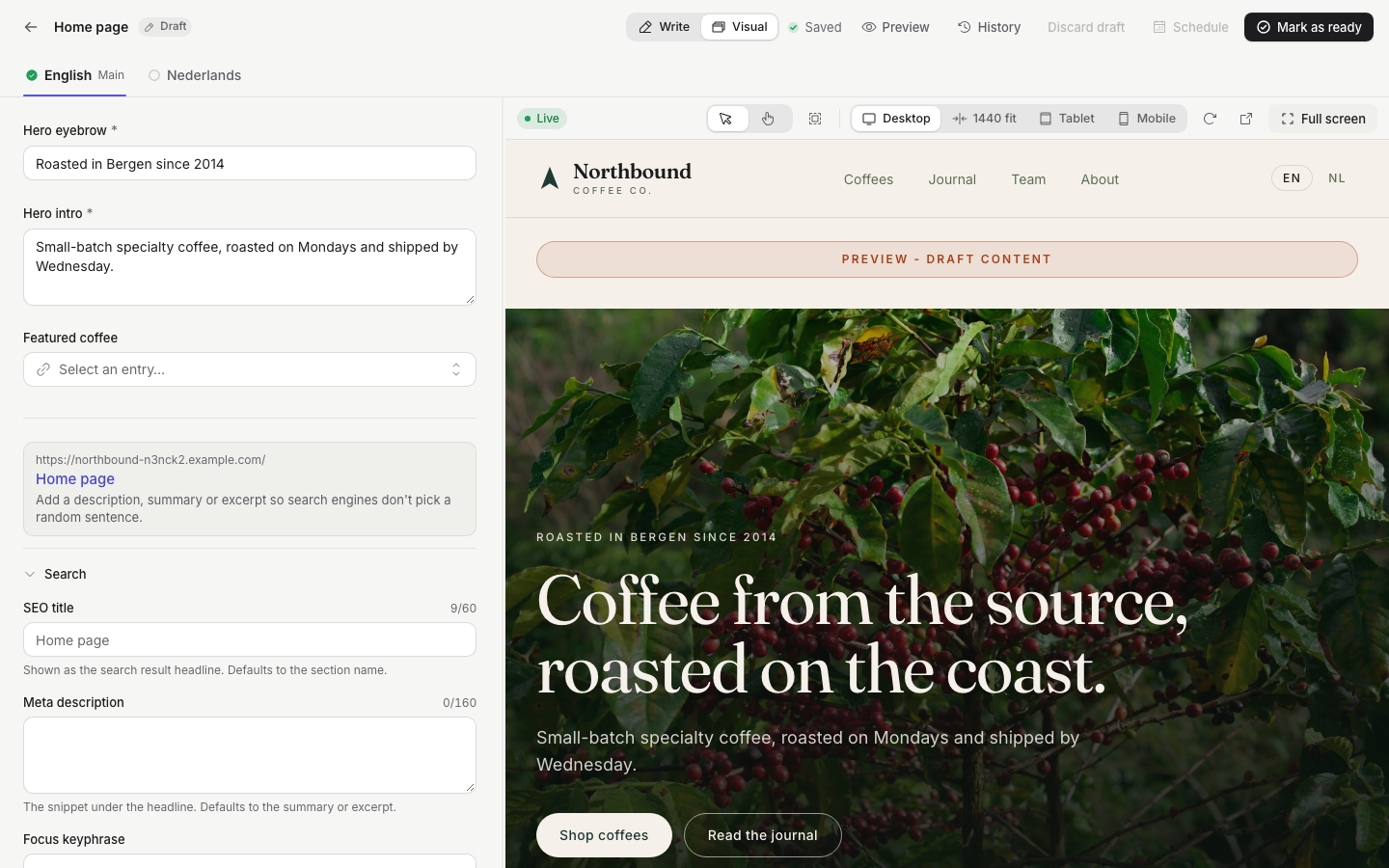
Edit an entry or site content section beside a live preview of the page. See changes as you type, and click part of the page to jump to its field.
The visual editor shows the page beside the fields you are editing. As you type, the preview changes too. If you click a part of the page, the editor jumps to the field that fills it.
Use it when you want to see how a change looks in context, without opening a separate preview tab and refreshing it after every change. Your changes are still saved as a draft, the same as in the normal editor. See Writing and editing entries.
The visual editor works on desktop only. You need a window at least 1280 px wide. In a narrower window the switch is hidden, and only the normal editor (Write mode) is available.
Open the visual editor
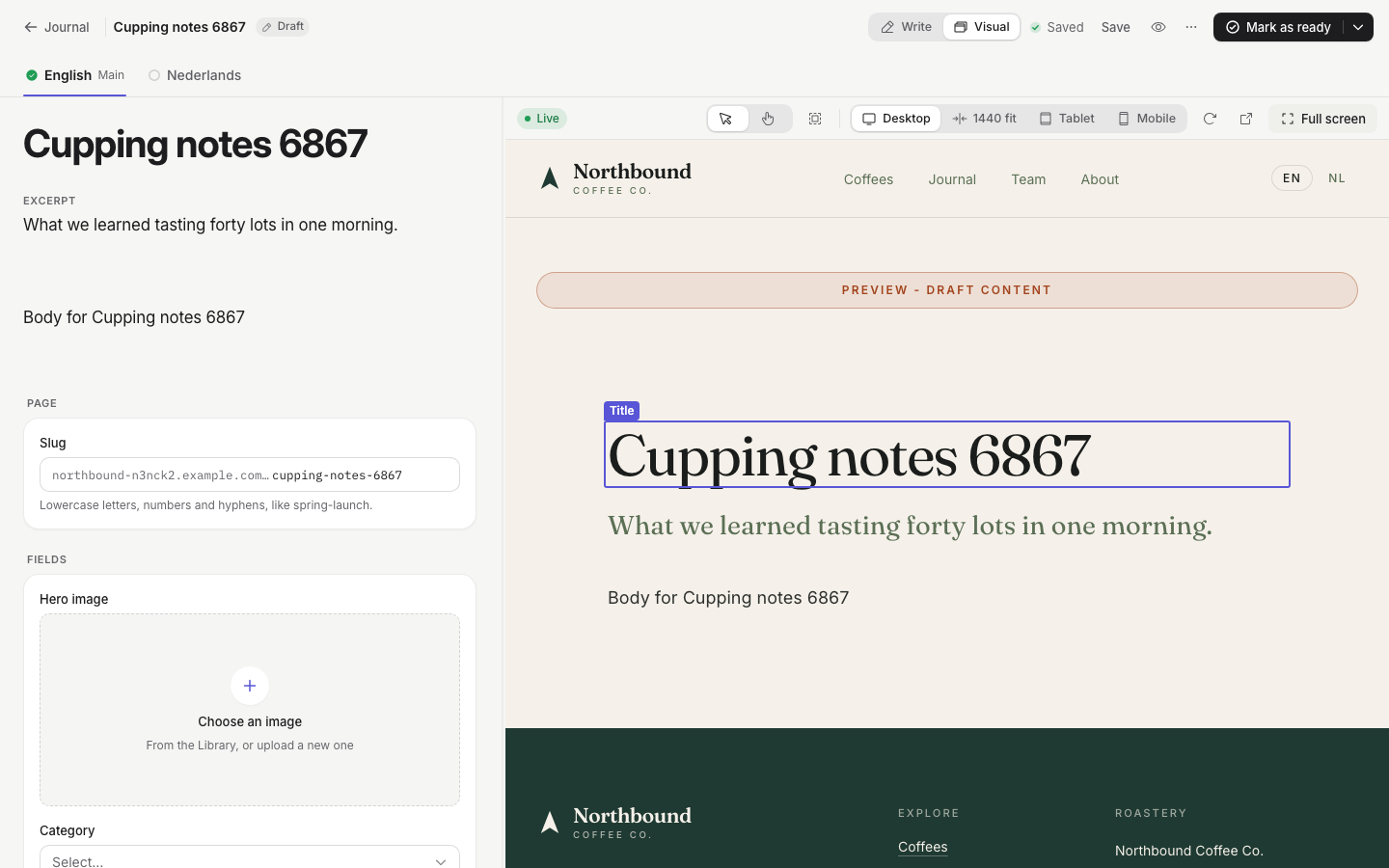
Open an entry, or a site content section, then use the Write | Visual switch in the top bar. Select Visual to switch.
You can also:
- Press ⌘⇧E on a Mac, or Ctrl+Shift+E on Windows and Linux.
- Open the command menu with ⌘K (or Ctrl+K) and choose Open visual editor.
The mode is remembered in your browser, and it is kept in the page address (?view=visual). A link you share opens in the same mode.
A new entry can't use Visual mode until it has been saved once. Until then, the Visual option is disabled with the reason Available after the first save. The first autosave creates the entry, and Visual mode becomes available after that.
Preview status
The status pill in the preview toolbar tells you how the preview is updating.
| Status | What it means |
|---|---|
| Live | Changes show as you type. The website is connected to the visual editor. |
| Updates on save | The preview refreshes after each autosave, not as you type. The website is not connected to the visual editor yet. |
| Connecting… | The preview is starting up. This is normal for a few seconds after the page loads. |
| Retrying… | The last change could not be shown. The editor is trying again, and the preview keeps showing the last version that worked. |
If the status is Updates on save, your developer can connect the website to the visual editor so that changes show as you type. For the developer side, see Visual editing.
The preview toolbar
The toolbar above the preview has these controls, from left to right:
- Select and Browse. In Select mode, clicking a part of the page that has a field edits it, and a link on that part doesn't open. The rest of the page works as usual. Use Browse to use the whole page as visitors do. You can also hold ⌥ Option (or Alt) to browse for a moment.
- Show editable areas. Draws faint outlines around every part of the page that you can click. It is off by default, and the setting is remembered.
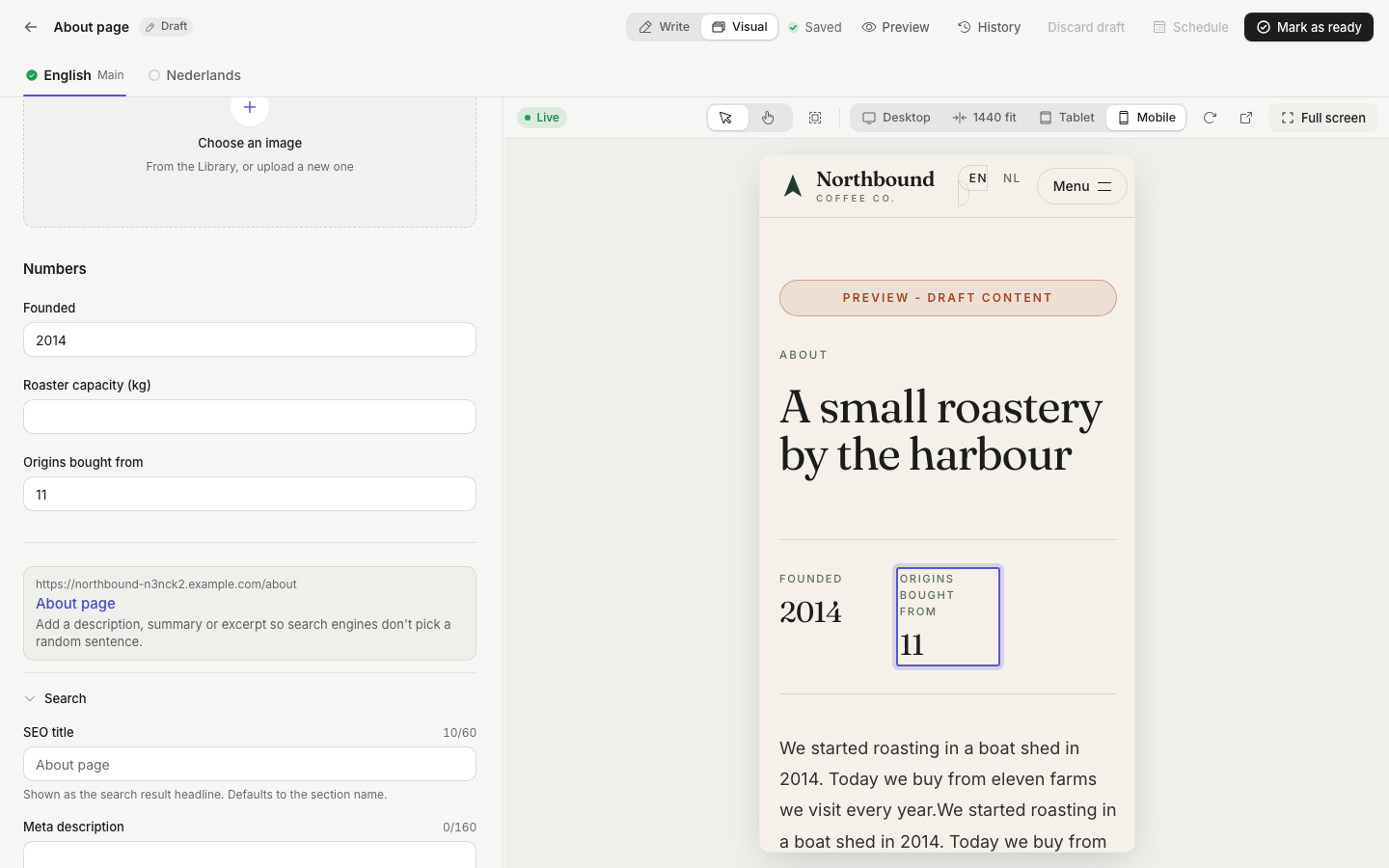
- Width presets: Desktop fills the preview. 1440 fit shows the page at a 1440 px width, scaled down to fit, so a laptop shows the desktop layout. Tablet and Mobile show the page at its real width, 768 px and 390 px. When the preview is narrower, they are scaled down to fit, like 1440 fit.
- A reload button for the preview.
- A button that opens the preview in a new tab.
- Full screen.
Your width choice is remembered in your browser.
Full screen
Select Full screen, or press ⌘⇧Enter (or Ctrl+Shift+Enter). The preview fills the window, and the rest of the CMS is hidden. A small toolbar stays at the top with Exit full screen and the Esc hint. Press Esc, or select Exit full screen, to go back. Esc also works after you click inside the page, when the website has the visual editing connection. Without it, use the Exit full screen button.
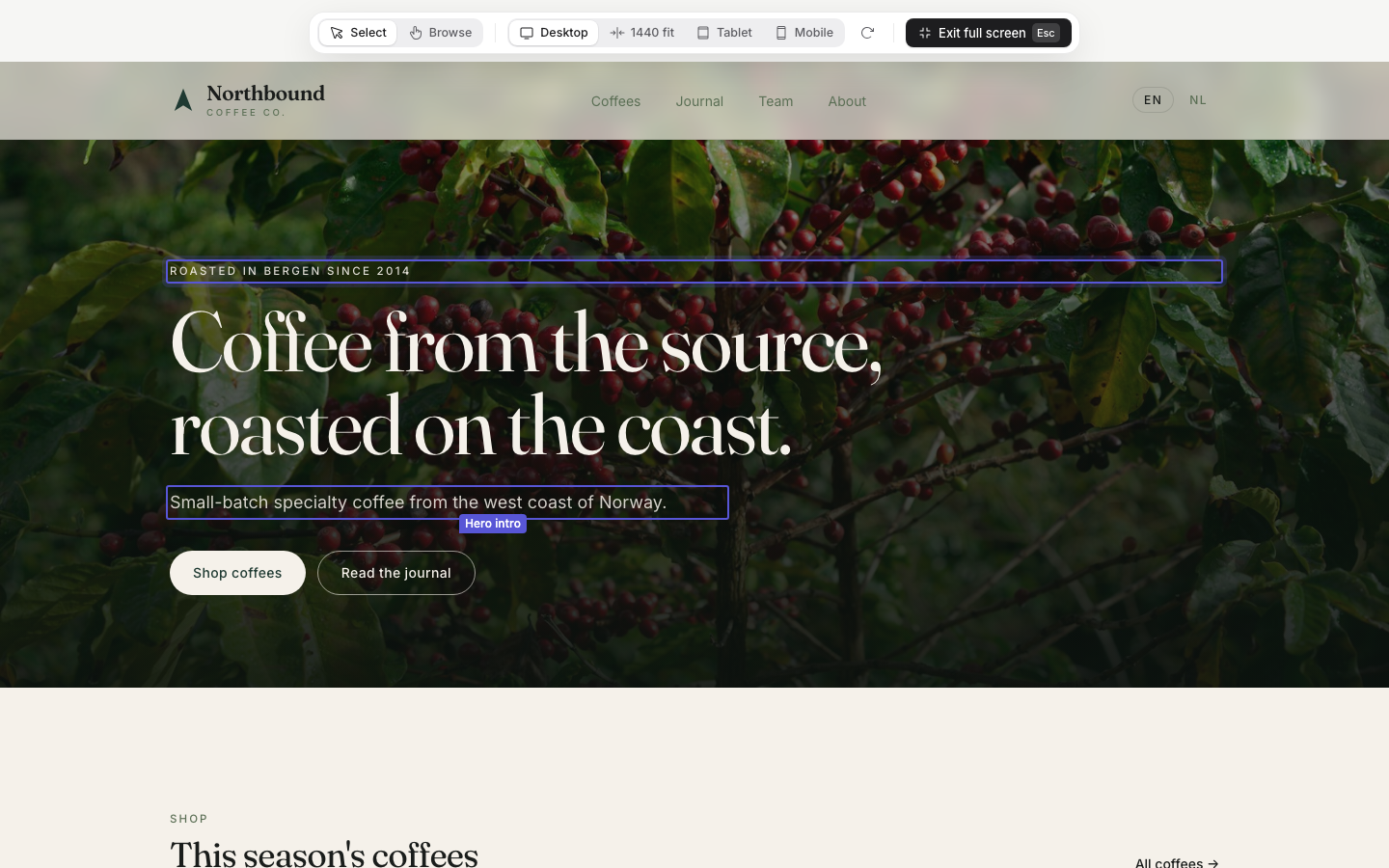
In full screen, you can still click a part of the page that has an editable field. The preview exits full screen, the field is focused, and the part stays outlined. After this, a Back to full preview button appears in the toolbar. Select it, or press ⌘⇧Enter, to return to full screen. The editor doesn't go back to full screen on its own.
Preview widths
The Mobile preset is useful for checking a layout on a phone-sized screen.
Resize the split
Drag the divider between the editor and the preview to make either side wider. The editor can't become narrower than 360 px, or wider than half the window. To move the divider from the keyboard, focus it and use the arrow keys. Double-click the divider to reset the width.
Click to edit
Click part of the page to edit it:
- Move the pointer over the page. Parts that belong to a field get an outline with the field's name.
- Click the part. The editor focuses that field, and the field briefly glows.
If the field is inside a closed group, such as the SEO panel, the group opens first.
The link also works in the other direction. When you focus a field in the editor, its part of the page is outlined in the preview and scrolled into view.
Clicks on parts without a field do nothing in Select mode.
Parts that belong to something else
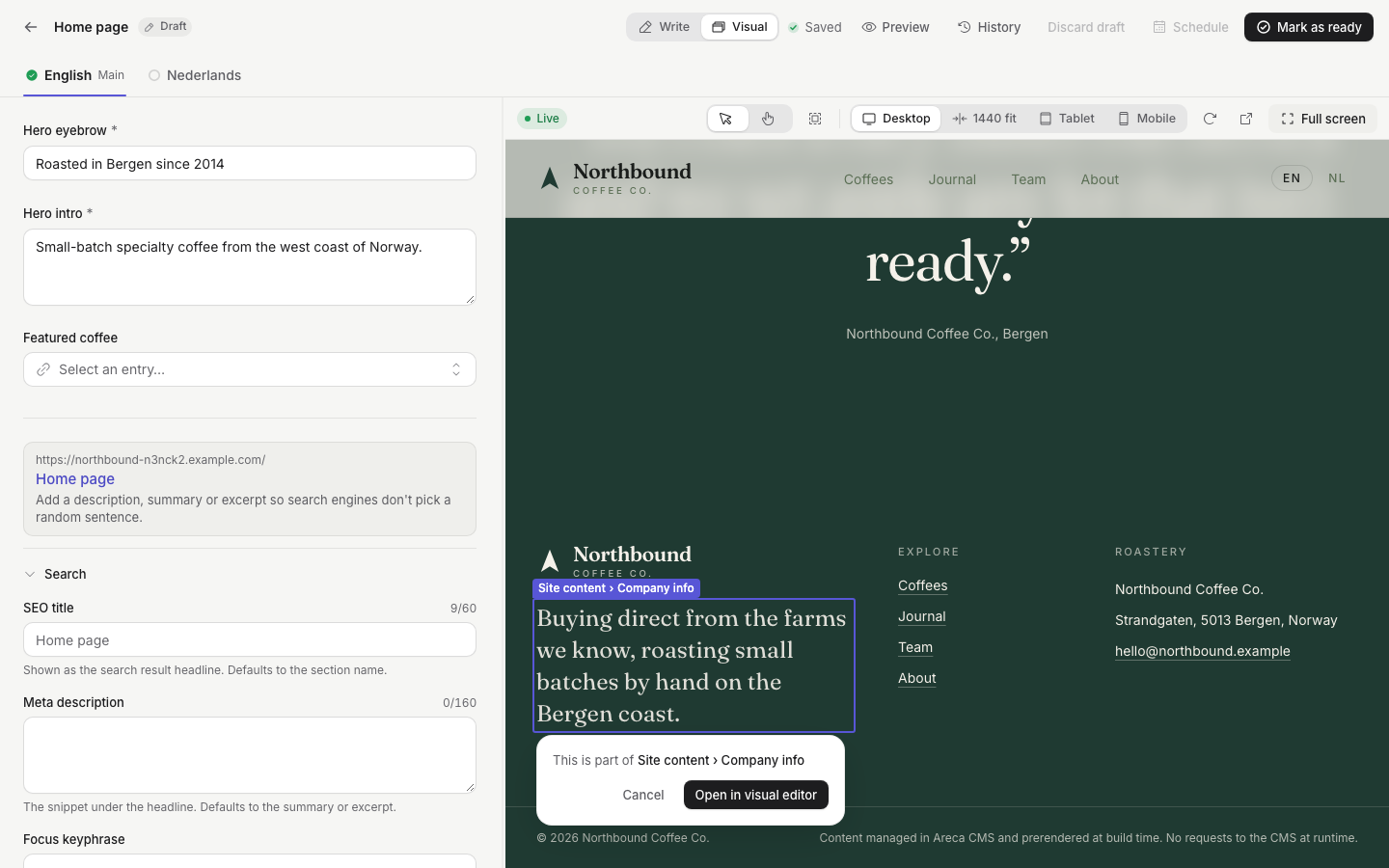
Some parts of a page are not part of this entry. Examples are a header, a footer, or an author who is referenced by the entry. If you click one of these, a popover says This is part of the other entry or section, such as Site content › Footer.
Select Open in visual editor to go there. The current entry is saved first, and then the other entry or section opens in the visual editor. Select Cancel to stay where you are.
The popover only appears for parts you are allowed to edit. For parts you can't edit, clicking does nothing.
Browsing away
In Browse mode, you can follow a link to another page of the site. When you do, a bar appears that says You're viewing another page. The bar ends with Back to and the title of the entry you were editing. Select it to return to that entry's preview.
Site content sections
Visual mode also works for site content sections, such as Home page or Company info. A section can be edited in Visual mode when it has a preview page: the developer gives the section a preview path in the site's content setup.
If the section has no preview page, Visual mode stays disabled, and the reason says: Preview is not set up for this section yet. An agency admin can add a preview path.
Nothing is saved or published by the preview
The preview only reads your work. It does not:
- Save anything on its own. Your normal autosave still does the saving.
- Publish or mark anything as ready.
- Change the live website.
Only you see the unsaved changes in the preview. Other people see the entry as it was last saved. When you are ready, use Mark as ready and Go live as usual. See Drafts, ready and live.
Troubleshooting
The preview is blank
The website must allow the CMS to show its preview page inside the editor. Select Preview blank? in the preview for the explanation. Your developer needs to allow this CMS address in the website's frame settings.
If the preview still doesn't load, an agency admin can check the Preview URL in Settings › General. It must point to the website. See Site settings.
Parts of the page can't be clicked
The website has not marked which parts of the page belong to which field. Ask your developer to add the visual editing markers. Until then, you can still use the fields and see the preview.
The status only says Updates on save
The preview updates after each autosave, not as you type. This is the normal behaviour for a website that is not yet connected to the visual editor. Ask your developer to connect it, as described in Visual editing.
Related
- Previewing drafts
- Site content
- Site settings
- Visual editing: how a website connects to the visual editor.