 Areca Docs
Site content
Edit the single sections of copy that make up a site, such as company details and the home page, then mark them ready, schedule them, discard drafts and preview them.
Some copy exists once per site, not as a list: company details, the home-page hero, the About page text, a set of stats. The site's developers or your agency define these as site content sections. Each section is one form. You fill it in, and it goes live with the rest of the site.
A site can have several sections. Each one shows in the sidebar's Site content group, with its name, such as Company info or Home page. Search (⌘K or Ctrl+K) also lists them under Go to.
If the site has no enabled sections, the group does not appear in the sidebar.
Edit a section
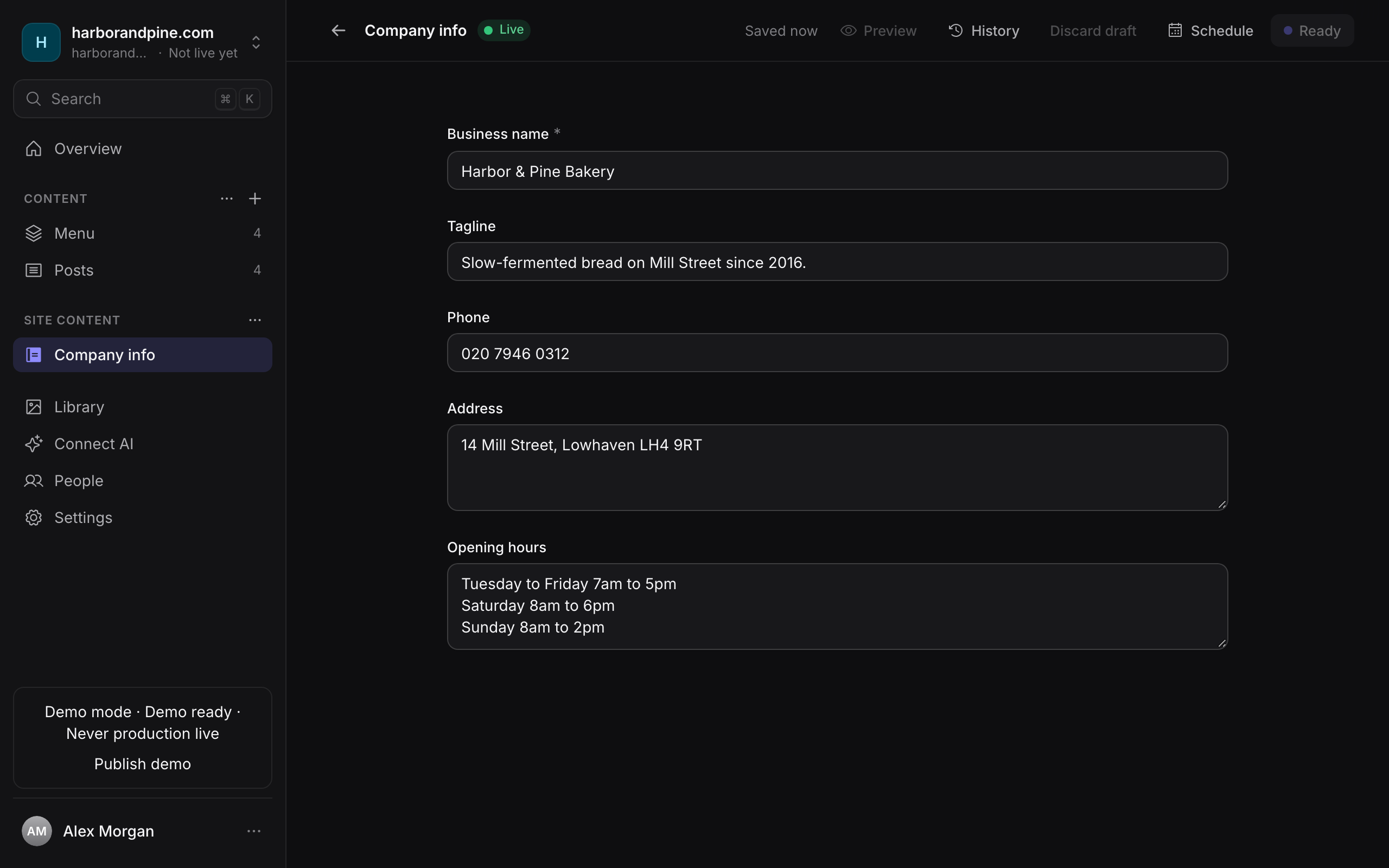
Open the section from the sidebar. The page is one form with the section's fields. Fields with a group heading, such as Contact, appear together under that heading.
Changes save automatically, the same as entries. The save status is in the top bar. If a section has Search & social (SEO), its SEO panel works like an entry's. See SEO and AI suggestions.
Actions
The top bar has these actions. Which ones you see depends on your role.
| Action | Who | What it does |
|---|---|---|
| Mark as ready | Owner | Approves the current draft for the next Go live. It does not change the live site. |
| Schedule / Cancel schedule | Owner | Sets or removes a time for the approved version to go live. See Scheduling. |
| Discard draft | Editor, owner | Throws away unsaved changes to the draft and returns to the ready or live version. |
| Preview | Everyone | Opens the page that shows this section with your draft. See below. |
| History | Editor, owner | Lists earlier versions. Owners can restore one. |
Sections have no unpublish, archive or delete action. To remove a section from the site, ask an agency admin.
Discard draft
Discard draft is useful when you want to undo a set of edits. It copies the ready version back into the draft, and the change is recorded in History. It is not available until the section has been marked ready at least once, because there is nothing to go back to.
Preview
The Preview button opens the page of the website that shows the section, with your draft in place of the published text. The link expires after a while, the same as entry previews, so select Preview again to get a new one.
If the button is missing, the section has no preview page. Ask an agency admin to set a Preview path, such as /about.
A section with a preview page can also be edited in Visual mode, with the page shown beside the fields. See Visual editor.
Anyone with the link can see the draft
A preview link works until it expires, even for someone who is not signed in to the CMS. Do not share it outside your team.
Ready, schedule and go live
A section follows the same states as an entry. Editing a ready section changes its draft, and the ready version is the one that goes live until you mark the new draft ready again. A scheduled version stays separate from later draft edits.
Go live is blocked while a section with required fields has never been marked ready. The Go-live panel names the section, such as Company info, when its changes are part of a release.
Related
- Writing and editing entries: the same workflow for lists of content.
- Drafts, ready and live: the states and what each one means.
- Going live: how a release is built and published.
- Site content in the SDK: how the website reads these sections.